Connecting Services
How to connect third-party services like Google Sheets and Google Drive, connect a sandbox for testing, and configure connector steps in your workflows.
FormAssembly can send your form submission data to external services like Google Sheets, Google Drive, Salesforce, and Stripe. Before your workflows can interact with these services, you need to authorize a connection so that FormAssembly has permission to read or write data on your behalf.
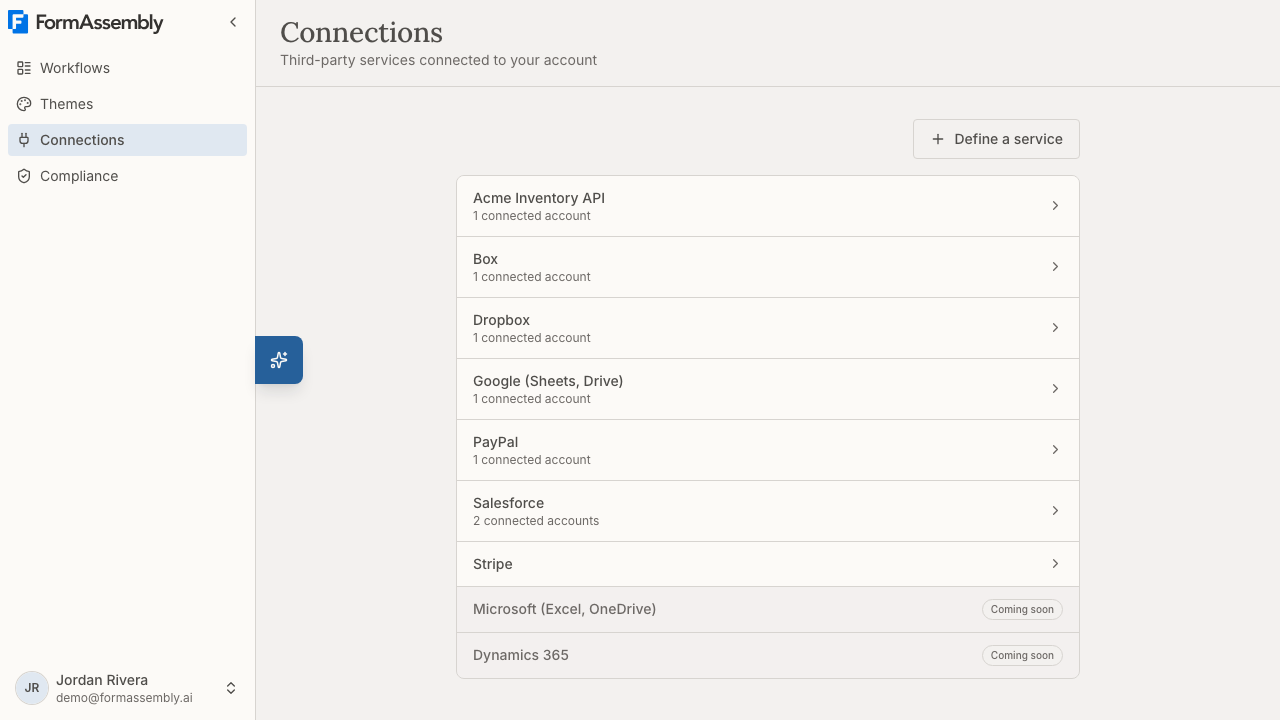
Available Services
FormAssembly can connect to the following services. Most are opened from the Connections page; two are connected by asking Fai, the built-in AI assistant in FormAssembly.
- Salesforce — send data to, or read data from, your Salesforce org. See "Connect to Your CRM".
- Google (Sheets, Drive) — one Google connection covers both Google Sheets and Google Drive. See "Connect to Spreadsheets & Files".
- Microsoft (Excel, OneDrive) — one Microsoft connection covers both Excel Online and OneDrive. The row on the Connections page shows Coming soon and cannot be opened; ask Fai to connect your Microsoft account. See "Connect to Spreadsheets & Files".
- Box — upload submitted files to Box. See "Connect to Spreadsheets & Files".
- Dropbox — upload submitted files to Dropbox. See "Connect to Spreadsheets & Files".
- Dynamics 365 — send data to Microsoft Dynamics 365. The row shows Coming soon and cannot be opened; ask Fai to connect Dynamics 365. See "Connect to Your CRM".
- Stripe — collect payments as part of a workflow. See "Taking Payments".
- PayPal — collect payments as part of a workflow. See "Taking Payments".
There is no Webhook / HTTP row on the Connections page. To send submission data to your own endpoint or another API, click Define a service and describe the API yourself — see "Defining Your Own Service" below, and "Connect to Developer Tools".
Some connectors are account add-ons: Salesforce, Webhook / HTTP, Dynamics 365, Dropbox, Box, and the payment connectors (Stripe and PayPal together, as one add-on) are available only when your account's plan includes them or your account has purchased them. Google Sheets, Google Drive, Excel Online, and OneDrive are included in every plan. Accounts that were already using Dynamics 365, Dropbox, or Box in a workflow when those connectors became add-ons were granted them automatically.
What each service can actually do with your data — the records it can create, how fields are mapped into it, and its own limits — is covered by the dedicated connector articles. See also: "Connect to Your CRM" (Salesforce and Dynamics 365), "Connect to Spreadsheets & Files" (Google Sheets, Google Drive, Excel Online, OneDrive, Box, and Dropbox), "Connect to Developer Tools", and "Taking Payments" (Stripe and PayPal). This article covers the mechanics that are the same for every service: authorizing a connection, reconnecting when access lapses, sandbox connections and testing, who can see and use a connection, and disconnecting.
Navigating to Connections
- Open the navigation menu using the button in the top-left corner of the screen.
- Navigate to the Connections page.
- You'll see a list of available services. Select the one you'd like to connect — for example, Google (Sheets, Drive) connection settings, Salesforce connection settings, or Stripe connection settings.
Each row shows how many accounts you have connected for that service. Services with at least one connection are listed first, then the rest alphabetically. A service that has a connection needing attention shows Reconnect required on its row.
Connecting a Service
When you open a service's connection settings for the first time, you'll see a brief description of what the service is used for and what permissions FormAssembly will request.
- From the Connections page, select the service you want to connect.
- Initiate the connection from the service detail page. You'll be redirected to the service's sign-in page (e.g., Google or Salesforce).
- Sign in to your account on the external service and grant the requested permissions.
- After you approve, you'll be redirected back to FormAssembly with your connection confirmed.
- The new connection is named after the account you signed in with. To give it a more descriptive name (e.g., "Production," "Marketing Team," or "Sandbox"), rename it afterwards with the edit (pencil) control on the service's page.
Once connected, Fai — the built-in AI assistant in FormAssembly — can configure your workflows to send data to that service.
Connecting a service and disconnecting one are both recorded in your account's audit records.
Connecting a Salesforce org that uses a custom login domain
Some Salesforce orgs turn on a My Domain login policy that blocks the standard Salesforce login pages. If yours does, signing in through the standard page fails with a generic "check your username and password" message even though your credentials are correct.
Before FormAssembly sends you to Salesforce, the Salesforce connect page asks how you sign in: at the standard Salesforce login page for that environment, or on a custom domain. The standard answer is preselected, so the common case is a single click. Choose the custom-domain answer and enter your My Domain host (for example, acme.my.salesforce.com) to sign in there instead. FormAssembly checks the domain you enter before contacting it, and rejects anything that is not a valid Salesforce My Domain host. The same question is asked whether you are connecting a live org or a sandbox org.
Connecting a webhook or your own API
There is no Webhook / HTTP row on the Connections page, and no sign-in screen to redirect to. To reach your own endpoint or another API, define the service yourself on the Connections page with Define a service, then add a connection to it — the full procedure is in "Defining Your Own Service" below.
Connecting through Fai
You can also start a connection directly from a conversation with Fai. This is useful when Fai needs a connection to complete a workflow you're building together, and it is how you connect Microsoft (Excel, OneDrive) and Dynamics 365.
- Ask Fai to connect a service — for example, "Connect my Google account."
- Fai displays a connect card in the chat with a button to begin the authorization flow.
- Click the button to sign in to the external service and grant permissions, just as you would from the Connections page.
- After you approve, you're returned to FormAssembly and the conversation with Fai resumes automatically.
- Fai detects the new connection and can immediately use it in your workflow.
The connect card in the chat is temporary — if you reload the page before clicking, ask Fai to show it again.
If you deny consent, or the connect card expires before you use it, Fai lets you know the authorization did not complete and offers to try again.
Fai can only start connections for services that have a sign-in and consent screen, including sandbox connections for the services that offer one. A connection to a service you defined yourself is always created on its own connection settings page — Fai will point you there rather than asking you for the credential in chat.
Defining Your Own Service
When FormAssembly ships no entry for the system you want to reach, you can define that service yourself and then hold one or more connections to it. Defining the service once means the details that are the same for every connection — the address of the API and how it expects to be authenticated — are entered a single time, so each further connection you add afterwards only needs its own credential.
A service you define appears on the Connections page as a row alongside the built-in services, with its own connection count and its own connection settings page.
Defining a service
- Open the Connections page.
- Click Define a service.
- Fill in the form: a Name for the service, the Base URL of the API, and (optionally) an OpenAPI document URL. The OpenAPI document is used only while you configure a workflow — it is never called when a workflow runs.
- Choose the Authentication method — None — public endpoint, API key, Bearer token, Basic auth, or OAuth 2.0 (client credentials) — and enter the configuration that belongs to the service rather than to a person, for example the name and placement of the API key header, or the token URL, client ID, client secret, and scopes for an OAuth 2.0 client-credentials service.
- Submit the form to save the service. It then appears in the Connections list, where you open it to add a connection with your own credential.
Notes and limits:
- The service name must be unique. If you already have a service with that name, FormAssembly rejects the new one so two indistinguishable rows can't appear in your list.
- The URLs you enter are checked when you save them. If an address is not allowed, the form stays open and states the reason so you can correct that field.
- Sign-in-based OAuth is not available for a service you define. The authentication choices are None — public endpoint, API key, Bearer token, Basic auth, and OAuth 2.0 (client credentials), which needs no sign-in page.
- The client secret is write-only. After you save it, FormAssembly shows only that a secret is configured, never the value. Leave the field blank when editing to keep the stored secret.
- The authentication method belongs to the service, not to each connection. A service authenticates one way for every connection beneath it.
- Credentials you enter are never displayed back to you afterwards.
Connecting to a service you defined
Open the service's connection settings page from the Connections page and fill in the short connect form: a label for the connection, plus your own credential (an API key, a bearer token, or a username and password). You are not asked for the base URL or the authentication method again — those already belong to the service.
Some authentication methods carry no per-user credential at all. In that case the service holds exactly one connection, and no further connect form is offered once it exists.
A connection to a service you defined has no Reconnect option, because there is no external consent screen to return to — rotate its credential by editing the connection instead (see "Editing a connection").
Editing or deleting a service
A service you defined has Edit service and Delete service controls in the header of its detail page. Built-in services have neither — their configuration ships with FormAssembly.
- Editing a service changes it for every connection beneath it. You can update the name, base URL, OpenAPI document URL, and the scheme's shared configuration.
- The authentication method cannot be changed. Every connection under the service holds a credential shaped by that method, so switching it would strand them. Define a new service instead.
- A service can only be deleted once no connections reference it. If connections remain, FormAssembly refuses the deletion and tells you how many are still there. Disconnect them first, then delete the service.
Managing Your Connections
Viewing connected accounts
After connecting a service, its detail page displays each connected account along with:
- The label for the connection — the account it was created with, or the name you gave it when you renamed it
- The identity associated with it (e.g., your email address or username on the external service)
- The date the connection was established
Connecting multiple accounts
You can connect more than one account for the same service. For example, you might connect both a Salesforce production org and a sandbox environment. Each connection has its own label so you can tell them apart.
To add another account, open the service's connection settings and start a new connection flow.
Reconnecting a connection
If your connection stops working — for example, because you changed your password on the external service — click Reconnect on that connection. Reconnecting takes you through the sign-in flow again and updates your existing connection rather than creating a duplicate. A connection that needs this shows Reconnect required.
A connection to a service you defined yourself has no Reconnect option. When its credential is rejected, its page reads "Credential rejected — edit this connection to supply a new one" — edit the connection and enter a new credential to clear the warning.
Editing a connection
You can edit an existing connection in place from the service's detail page. Editing keeps the same connection, so every workflow step already pointing at it continues to work — this is why editing exists rather than deleting and re-adding.
- Every connection's label can be renamed, using the edit (pencil) control. Renaming affects only how the connection is identified in FormAssembly.
- Connections whose credential you entered yourself — connections to a service you defined — can have that credential replaced. Credential fields start empty and mean "replace with this" — leave them blank to keep the stored credential. For basic authentication, enter both the username and the password to replace it.
- Only the label and the credential are editable on a connection. Endpoint configuration — the base URL, the OpenAPI document URL, the API key's name and placement, and any OAuth client details — belongs to the service and is edited there (see "Editing or deleting a service"). Built-in services cannot be edited.
- The authentication method is fixed once a connection is created. To use a different authentication method, disconnect the connection and connect to a service that uses the method you need.
- Replacing a credential clears an invalid-connection warning; renaming does not. A connection whose credential was rejected keeps warning until the credential itself is replaced or the connection is reconnected.
- Connections to services with a sign-in screen (such as Salesforce, Google, Microsoft, Dynamics 365, Stripe, and PayPal) only have their label edited here. Their credentials are refreshed with Reconnect, not by editing.
Disconnecting a service
You can remove a connection at any time from the service's detail page. Disconnecting is immediate and permanent — it cannot be undone. Before you confirm, FormAssembly lists every workflow you own, draft or published, that uses the connection as its live connection. A connection used only as a test connection gives no warning.
After disconnecting, any workflow that relied on that connection will fail until you either reconnect the service or reconfigure the workflow through Fai.
Sandbox Connections
Some services — currently Salesforce, Stripe, and PayPal — offer a non-production environment (such as a Salesforce sandbox org, Stripe test mode, or a PayPal sandbox account) that you can connect separately. Sandbox connections let you test your workflows without affecting real data or processing real payments.
Connecting a sandbox account
On the connection settings page for a service that supports sandboxes, you'll see a Connect sandbox account option alongside the standard connect option. Connecting a sandbox account follows the same authorization flow as a regular connection — sign in to the service's sandbox environment and grant the requested permissions. All three sandbox-capable services (Salesforce, Stripe, and PayPal) are connected this way.
- Sandbox connections are optional. You can build and test workflows without one.
- You can connect a sandbox account before connecting a live account — no live connection is required first.
- Sandbox connections appear in your connection list with a Sandbox badge so you can distinguish them from live connections.
- Sandbox connections are started from the service's connection settings page, or by asking Fai to connect a sandbox account for a service that offers one.
- A sandbox connection and a live connection are kept separate, even when you sign in with the same account. Reconnecting one never overwrites the other.
How sandbox connections are used during testing
When you test a workflow using the Test button in the workflow builder, any connector step that has a sandbox connection configured runs against the sandbox environment instead of the live service. This lets you verify that your workflow sends data correctly without creating real records or processing real payments.
- If a connector step has no sandbox connection, testing runs against the live connection, just like a published workflow.
- Published workflows always use the live connection. Sandbox connections are never used for published workflows.
- Records and settings referenced by your workflow must also exist in the sandbox environment. If a step points at something that only exists in your live account, the test run fails with the service's own error message.
Publishing requires a live connection
You can build a workflow, configure its connector steps and field mappings, and test it using only a sandbox connection — a live connection is required only to publish. A workflow with a connector step that requires a live connection but does not have one cannot be published.
How Connections Are Used in Workflows
You don't need to manually wire connections into your workflows. When you describe what you want — for example, "send responses to my Google Sheet" — Fai configures the workflow to use the appropriate connection.
Only Salesforce connector steps can be added from the builder: in Focus view, the Add step menu's Connect group has one item, Salesforce. Every other connector's step — Dynamics 365, Google Sheets, Google Drive, Excel, OneDrive, Box, Dropbox, Webhook / HTTP, Stripe, and PayPal — is added by asking Fai.
The connector step in your workflow shows how your data flows between FormAssembly and the connected service. You can view this in the workflow builder by opening the details for a connector step in Focus view. From there you'll see:
- Which account is connected (including the label and identity)
- The sandbox account, if one is set for that step, shown as Sandbox account (test mode)
Only Salesforce connector steps open an editable action card where you can adjust the configuration yourself. Every other connector's step — Dynamics 365, Google Sheets, Google Drive, Excel Online, OneDrive, Box, Dropbox, Webhook / HTTP, Stripe, and PayPal — shows a read-only summary of what the step does, ending "Connector configuration is managed by the AI agent." To change one of those steps, ask Fai. Their Connected account and Sandbox account (test mode) are shown read-only.
A Salesforce step is the one step that names its connections through pickers: the live connection a published workflow runs against, and an optional test connection used by test runs. The live picker lists only your live connections for Salesforce, and the test picker lists only your sandbox connections, so a connection can never end up in the wrong slot. Each account in a picker shows its own status indicator: a green mark means the connection is usable, and a red mark with Reconnect required means that account's credential has expired or was rejected and needs to be reconnected before a workflow can use it.
Choosing to connect a new account from either picker opens the Salesforce connection settings in a new tab, so your workflow edits are not interrupted. Once the authorization finishes, the connections page confirms it and offers to send you back to the builder; taking that option selects the new account into the slot you started from. You can also stay on the connections page instead, which leaves the slot unchanged.
Switching a step to a different account may affect existing field mappings if the new account's data differs.
Connection Ownership
Connections are personal to your user account. Other members of your team cannot see or use your connections, and you cannot see theirs. Each person who needs to send data to an external service must set up their own connection.
A service you define yourself is personal in the same way: it appears on your Connections page only, and other members of your team cannot see it or connect to it.
Automatic Token Refresh
FormAssembly automatically keeps your connections active by refreshing authentication tokens before they expire. In most cases, once you connect a service, it stays connected without any action on your part.
If a token can't be refreshed — for example, because you revoked access from the external service's settings — your connection will be marked as invalid and you'll need to reconnect it.
FormAssembly does not refresh API keys, bearer tokens, or basic credentials. They remain stored until you replace them, but the endpoint may expire or reject them; replace the credential when that happens.
Tips & Troubleshooting
- "Connection not found" warning in a workflow step — This means the connection that was originally used has been removed. Open the Connections page, reconnect the service, and then ask Fai to update the workflow.
- Workflow fails after changing your password on an external service — For a connection you made by signing in (Salesforce, Google, Stripe, PayPal, Box, Dropbox), click Reconnect on the affected connection from its detail page. This refreshes your credentials without needing to reconfigure your workflows. A connection to a service you defined has no Reconnect: edit the connection and enter the new credential instead.
- A connection is marked "Reconnect required" — The stored credential has expired or was rejected, and FormAssembly cannot tell which cause applies. Click Reconnect on that connection and the warning clears. A connection to a service you defined shows "Credential rejected — edit this connection to supply a new one" instead; edit the connection and enter a new credential.
- Not sure which connection a workflow uses? — Open the connector step details in the workflow builder. The connected account section shows the label and identity of the linked account.
- Want to switch a workflow to a different account? — Ask Fai to update the connection used by the workflow. For example: "Use my Sandbox Salesforce connection instead of Production."
- Each connection needs a label — When connecting multiple accounts for the same service, rename each connection with a clear, descriptive label (e.g., "Sales Team Google Sheet" or "HR Drive Folder") so you and Fai can easily identify the right one.
- Disconnecting doesn't roll back data — Removing a connection stops future data transfers but does not delete any data that was already sent to the external service.
- Want to test a workflow without affecting real data? — If the service supports it (currently Salesforce, Stripe, and PayPal), connect a sandbox account from the service's connection settings page, or ask Fai to connect one. When you test the workflow, connector steps with a sandbox connection run against the sandbox instead of the live service.
- Test run fails only in the sandbox — Check that the record, object, or product the step refers to also exists in your sandbox environment. A step that points at something present only in your live account fails in the sandbox until you create an equivalent item there.
- A Salesforce sandbox connection shows a production org — Salesforce does not tell FormAssembly which environment you signed in to, so the environment you chose is recorded as you declared it. Check the org address shown on the connection row; if it is your production org, disconnect and connect again, choosing the environment you meant.
- Salesforce sign-in keeps failing with "check your username and password" — Your org may require a custom My Domain login page. Start the connection again and choose the custom-domain option, then enter your My Domain host.
- The connection wasn't saved after you approved access — FormAssembly only stores a connection when it can identify which account you authorized. If the external service didn't return that identity, you'll be returned with an error and nothing is saved. Start the connection again; if it keeps failing, check that your account on the external service has permission to share its profile or email address.
- The new tab for connecting an account never opened — Your browser blocked it. Open the Connections page yourself, connect the account there, then return to the builder tab; the picker picks up the new connection when the tab regains focus.
- Renaming a connection didn't fix it — A rename only changes the label. If a connection is marked invalid, click Reconnect (or replace its credential, for a connection to a service you defined) to clear the warning.
- "Delete service" is refused — A service you defined can only be deleted once nothing connects to it. FormAssembly names how many connections remain; disconnect those first, then delete the service.
- Can't change a service's authentication method — The authentication method is fixed for the life of the service, because every connection beneath it holds a credential in that shape. Define a new service with the method you need and connect to that instead.
- A connection picker in the builder says it couldn't load — Use the retry action in the picker. If you are exploring FormAssembly without signing in, the pickers state that you need to sign up first: connections belong to a user account, and your work in progress is kept when you create one.
Was this article helpful?