Viewing Responses
How to browse the responses a workflow has collected, read an individual submission, filter out test data, and check whether delivery to your connected systems succeeded.
The Responses page in FormAssembly shows every response a single workflow has collected, and lets you open any one of them to read all the answers it contains. Aggregate numbers — submission counts, completion rates — live on the Analytics section of the workflows page; the Responses page is where you go to see the individual records behind those numbers.
You can browse, search, filter and read responses, export a workflow's full response history, and delete an individual response. Response field values cannot be edited in this release.
How do I find the responses for a workflow?
- Open Workflows from the navigation menu.
- Find the workflow whose responses you want to read. You can use the search box, open the Filters panel to narrow by status, or click a column header such as NAME or MODIFIED to sort the list.
- Open the workflow, then go to its Responses page. You can also open the Workflow actions (⋯) menu on the workflow's row and choose Responses from there.
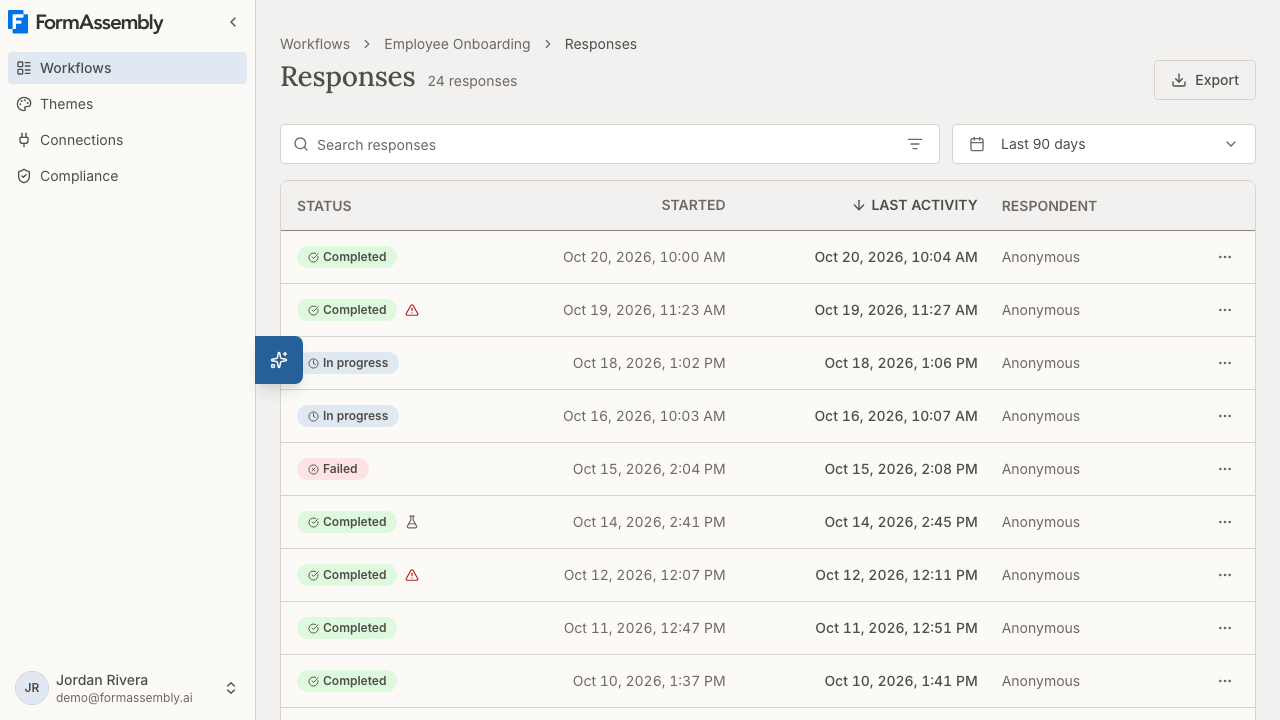
The breadcrumb at the top of the page confirms where you are: Workflows / {workflow name} / Responses. Each workflow has its own Responses page — there is no combined list of responses across all workflows.
If the workflow has not collected anything yet, the page shows an empty state instead of a table. This article assumes responses already exist; publishing a workflow, sharing its link, embedding it, and test-running it are covered in Collecting Responses.
What does the response list show?
Each row in the list is one response. The list is paginated at 25 responses per page, and it is sorted by LAST ACTIVITY, newest first, by default.
The columns are:
- STATUS — the current state of the response, shown as a badge with a leading icon. See "What do the response statuses mean?" below. If the response came from a test run, a flask icon appears in this cell immediately after the badge, labelled "Test response" for screen readers. If any delivery for the response failed, a red warning triangle also appears beside the badge, labelled "A delivery for this response failed".
- STARTED — when the response record was first created. FormAssembly creates the record on the first submit or save from a Collect step, whichever happens first — so if a respondent saved before submitting, Started reflects the save, not the later submit.
- LAST ACTIVITY — the most recent activity on the response. For a finished response, this is effectively when it completed.
- RESPONDENT — who submitted the response, or "Anonymous" when no identity is attached to it.
- Actions — an overflow (⋯) button that opens a menu of row actions.
Both finished and unfinished responses appear in the list. A respondent who started a Collect step and abandoned it partway through still shows up, marked as in progress, so you can see where people are dropping off. Visitors who only loaded the form and never submitted or saved anything do not create a response at all.
The failed-delivery warning
A failed delivery does not change the response's own status: FormAssembly records Completed at the end of the workflow whether or not a connected application or email accepted the data. So that a completed-but-undelivered response is not indistinguishable from a clean one, the row shows a red warning triangle beside the status badge. The warning is a single yes/no signal — it does not say how many deliveries failed or which ones — so open the response and read Delivery results for the detail.
The warning is shown whatever the response's own status says, including on a response whose status is Failed: a run that stopped and a delivery that never arrived are two different faults, and a response can have both. When the failure happened on a handed-off run rather than on the response itself, the message names which.
Responses that were handed off to someone else
When a workflow hands a response off to another person (an assign step), that handoff starts a run of its own — but the parent response and everything it handed off are one business event, and one entry in the list. A handed-off run appears indented directly beneath the response that started it, with one level of indentation per level of nesting.
An indented row identifies itself with three things the parent row does not carry: the assignee it was handed off to, the step that started it, and its own status, which is derived independently of the parent's. A handed-off run can read Cancelled while its parent is still In progress. When FormAssembly cancels a handed-off run — because the parent response moved past the step that handed it off, or a replay moved the response away from that step — any runs nested inside it are cancelled with it.
A file uploaded in the parent workflow can be passed into a handed-off run, and a file uploaded in a handed-off run can be passed back to the parent response, so an assignee can work with what the respondent sent and return a document of their own.
Paging counts parent responses only — 25 parent responses to a page — and a parent always brings its handed-off runs onto the same page, so the number of rows drawn varies from page to page.
About the Respondent column
The RESPONDENT column shows the resolved respondent when FormAssembly has an identity for the response, and reads "Anonymous" when it does not. A respondent with no name recorded reads as the email address they were invited at. Anonymous is the normal reading for a public form that does not identify its respondents. A run that was handed off to someone always names that assignee. If you need to identify respondents on an anonymous form, collect a name or email as a form field — that value appears in the collected data on the response detail page.
Date and time display
Dates and times are shown in your timezone and locale. The date column headers read plainly — STARTED and LAST ACTIVITY — and carry no timezone abbreviation. Times appear as date plus hour and minute (for example, "Mar 24, 2026, 2:30 PM"). A missing date renders as an em dash (—).
What do the response statuses mean?
FormAssembly derives the status of each response at the moment you view it, from where the response ended up. Status is not something you set, and it cannot be edited.
| Status | What it means |
|---|---|
| Completed | The response reached the end of the workflow. This is the default outcome recorded at an ending. |
| Failed | The run was stopped because the workflow looped excessively, or because a step failed in a way the workflow could not route around — for example, a redirect whose URL resolves to an unsafe or invalid address. |
| Cancelled | A handed-off run was ended because the parent response moved past the step that handed it off. |
| Approved | An approval step's approver approved. |
| Denied | An approval step's approver declined. |
| Comment | An approval step's approver returned the response for correction without deciding. |
| Signed | A signer signed the document. |
| Declined | A signer declined to sign the document. |
| Replaced | The response was replayed onto a corrected version. A replaced response links to its replacement and is not listed on the Responses page. |
| In progress | The response has not reached an ending yet. The respondent is partway through, or stopped partway through. |
One important point about statuses:
- There is no manual triage status. You cannot mark a response as new, reviewed, actioned, or archived. Editable statuses are planned for a later release.
If a workflow author names a custom outcome on an ending, that outcome is what the status reads.
How far back can I see responses?
Responses stay viewable for 90 days after their most recent activity. The Responses page and the individual response page are both bounded by that rolling window, which is why the Timeframe control at the top of the list defaults to and stops at the last 90 days.
Two things to know about the window:
- The window hides responses; it does not delete them. A response that has had no activity for more than 90 days still exists — it is simply not reachable from the list or from a direct link. An export is the route to it: an export covers a workflow's full history and is never bounded by the 90-day window.
- Analytics is not bounded by the window. The aggregate figures on the workflows page cover everything, which is another reason the two surfaces can disagree.
To narrow the timeframe, click Timeframe and choose a shorter span, or pick a custom range. Dates outside the window are disabled in the calendar rather than rejected after you select them, and the popover states the 90-day boundary in words. The dates you choose are written into the page address as real dates, so a link you share shows its recipient the same set you saw.
If you open a link whose dates can no longer be used — a start date more than 90 days back, an end date in the future, or a range that runs backwards — FormAssembly shows a dismissible notice above the toolbar naming what was dropped, and shows the list without that narrowing. The notice is informational: nothing has failed, and the list beneath it is complete.
Opening a link to a response that has aged out
A direct link to a response outside the window opens an explicit out-of-window state rather than a "not found" page. The state confirms the response still exists and states the 90-day window. To read that response's data, export the workflow's responses — an export reaches responses of any age.
How do I search responses?
Type in the search box above the table — labelled Search responses by respondent or status — to narrow the list to matching responses.
- Search covers the text columns you can see. Of the built-in columns, RESPONDENT matches as free text and STATUS matches on the label you read on screen, so typing
progressfinds an in-progress response. - Search does not cover dates. Use the Timeframe control or a date filter to narrow by STARTED or LAST ACTIVITY instead.
- Test responses and delivery failures are not searchable as text. Both are icons on the row rather than columns, so use the quick filters for them.
- Search ignores capitalisation, and it runs over the whole result set rather than the page on screen — a match on page four is found from page one.
- Search reaches handed-off runs, so a term matching an assignee returns the response that handoff belongs to.
Search composes with your filters rather than replacing them, and the term travels in the page address, so a searched and filtered view is shareable and survives the back button.
How do I filter the response list?
Click Filters in the search bar to open the filter panel. The button carries the number of criteria currently applied.
The panel holds two things:
- Quick filters are one-click toggles for the states that need no operator: Hide test responses and Delivery failures only. Pressing one writes an ordinary criterion, so it appears as a condition row, counts towards the Filters badge, and can be edited or removed like any other.
- Condition rows are built from a column, an operator, and a value. Click Add filter to add a row and Clear all to empty them.
Criteria are combined with AND: each row narrows what the rows above it already selected. Filtering ignores capitalisation, exactly as search does.
Which columns can I filter by?
You can filter by the columns you can see — STATUS, STARTED, LAST ACTIVITY and RESPONDENT — plus two attributes that appear on the row as icons rather than as columns: Test response and Delivery failed. Each column offers the operators that suit it: Status behaves like a single choice, Respondent like text, and the two timestamps like dates (is, is before, is after, is between).
The Status filter offers fewer statuses than the status table above: Completed, Approved, Denied, Comment, Failed, In progress and Cancelled. Signed, Declined and Replaced cannot be filtered on.
Timestamp filters take a calendar day, resolved in your timezone. is matches anything on that day; is before and is after exclude the named day; is between includes both named days.
Status and Respondent filter on what the cell shows, not on what is stored underneath — "Anonymous" is a value you can filter for.
How filters treat handed-off runs
Filtering on STATUS or RESPONDENT looks at the handed-off runs beneath a response as well as at the response's own row, so a response is returned when any row in it matches. Two criteria on that data must be satisfied by the same handed-off run — filtering for Approved and for a particular assignee returns only responses where one run is both.
One consequence is worth knowing: a negative filter such as Status is not Completed can return a response whose own badge reads Completed, because a run beneath it is in another state. The remaining criteria behave differently by design — LAST ACTIVITY and Delivery failed are already answered for the whole response, while STARTED and Test response always describe the response's own row.
Applied filters are visible without opening the panel
Every applied criterion shows as a dismissible pill above the table, reading as the sentence its row does — Delivery failed is Yes, Started is 4 Sep 2026. Dismissing a pill removes that criterion and leaves the rest. Values render the way their column renders them: a status as its badge label, a date in your own locale.
Filter state lives in the page address, so a filtered view can be bookmarked or shared, and the browser's Back button steps through the filters you applied. You can apply up to 25 criteria at once; at the limit the panel says "Limit of 25 filters reached" beside Add filter. A criterion in a shared link that can no longer be honoured is dropped, the rest of the link is applied, and the notice above the toolbar tells you how many were dropped.
Why is the list empty?
An empty list names its own cause, so you know what to do next:
- No responses yet — the workflow has not collected anything. Wait for a response.
- No matching responses — responses exist, but your search term, filters, or timeframe exclude them. The second sentence points at whichever narrowing is actually in force; if you searched, remember that search covers the columns you can see and not dates.
- No responses active in the last 90 days — responses exist but all fall outside the window. There is nothing to adjust on this page; the window is what is binding. Export the workflow's responses to reach them.
How do I sort the response list?
Click the STATUS, STARTED, LAST ACTIVITY or RESPONDENT column header to sort by that column. Clicking a header that is already active reverses the direction; clicking a new header opens at that column's own default — a date opens newest-first, text opens A–Z. The active column shows a direction arrow.
Sorting applies to the whole set of responses, not just the page you are looking at, and it returns you to page 1. Your timeframe, filters and search term are carried forward when you sort, because re-ordering a list is not a request to widen it. The delivery-failure warning is not a column and is not sortable — use the Delivery failures only quick filter for that question.
Two columns sort by something other than their raw value. STATUS sorts in a defined order — in progress, comment, completed, approved, signed, denied, declined, failed, cancelled, replaced — so open responses group ahead of closed ones. RESPONDENT sorts by the name you see, with anonymous responses sorting under "A" rather than clumping at one end.
Sorting orders the parent responses. A parent and its handed-off runs always stay together, and handed-off runs keep the order they were created in, whichever sort is active.
Because sorting and paging are recorded in the page address, you can bookmark or share a link to a particular sorted view of a workflow's responses.
How are responses counted and paged?
The total above the list is exact below 10,000 responses. At 10,000 or more it reads 10,000+, so a figure of exactly 10,000 is never shown as an exact count — read it as a bound rather than a total.
Paging follows the same threshold. Below 10,000 you get numbered pages alongside Previous and Next; at or above it the numbered pages drop away and you move through the list with Previous and Next only. The count honours whatever timeframe, filters and search term are applied, so narrowing the list can bring it back under the cap and the numbers reappear.
Above the cap a shared link can carry a position in the list that has since aged out of the 90-day window. FormAssembly returns you to the first page in that case, and the notice above the toolbar tells you why rather than presenting the first page as the position you asked for.
Test responses are counted like any other response, so hiding them changes the total.
How do I tell real submissions apart from test runs?
Test responses are included in the list by default and are marked with a flask icon in the STATUS cell, next to the status badge.
To hide them, press the Hide test responses quick filter in the Filters panel. It behaves like any other criterion: it shows as a pill above the table, counts towards the Filters badge, and is removed by dismissing the pill or pressing the chip again.
This is deliberately different from the Analytics figures on the workflows page, which always exclude test runs. The Responses page includes test runs by default because you are often actively testing a workflow and need to confirm your own test submissions arrived.
How do I export responses?
Click Export on a workflow's Responses page to open the Export responses dialog. An export is how you take a workflow's collected data out of FormAssembly — for a spreadsheet, a backup, or a data request.
- An export holds the workflow's responses, with every field, as a zip of CSV files — all of them except test runs, which are left out unless you ask for them. It is not limited to the 90-day window, so an export is the way to reach responses that have aged out of the list, and it is not narrowed by the search term, filters or timeframe currently applied to the list.
- Set an optional date range in the From and To fields to limit the export to responses that started inside that range. Leave both empty to export everything.
- Tick Include test responses to add test runs to the export. They are left out unless you ask for them, and every test row says it is one.
- Tick Include uploaded files to put the uploaded files themselves in the archive alongside the CSV files.
- Click Start export. FormAssembly builds the export in the background and emails the person who started it when it is ready, so you can leave the page. A very large export that includes files is split into several archives, each emailed when it is ready.
The responses file carries a Language column recording the language each response ran in, and each handed-off run's file carries one too. The column is empty only for a response collected before FormAssembly began recording the language, and for a handed-off run whose assignee has not opened it yet.
The dialog also lists your Recent exports for that workflow, each with its status — Queued, In progress, Ready, Failed or Expired — and a download link while an export is Ready.
You can also ask Fai, the FormAssembly AI assistant, to start an export for a workflow and to report how it is getting on. Fai requests the export under your own access and links you back to this dialog to download it.
How do I delete a response?
If your role allows deleting responses, and you own the workflow or are an account admin, open the Response actions (⋯) menu on a response's row and choose Delete, or click Delete on the response page. A confirmation — "Delete response?" — comes first.
Deleting removes the whole response at once, including any runs it was handed off to, and including a replacement chain: deleting a response that was replaced, or that replaced another, deletes the original and its replacement together. A response is never deleted one step at a time, and a handed-off run cannot be deleted on its own. A deleted response no longer appears anywhere in the product, and a direct link to it shows a "not found" page.
Deleting a response lowers the response count on the Responses page. The Analytics figures on the workflows page are built from recorded events rather than from responses, so they do not drop when a response is deleted or replaced.
Users who cannot delete a given workflow's responses do not see Delete at all, rather than a disabled item.
How do I open a single response?
Click anywhere on the row to open the response. The whole row is one link, so keyboard users reach it with a single tab stop. Alternatively, open the Response actions (⋯) menu at the end of the row and choose View response.
The response page is a timeline of the run: each step the response entered is an entry, and the answers a step collected sit inside that step's entry. Above the timeline, a summary card gives you the response at a glance.
Summary
The summary gives you the response at a glance: its status, whether it was a test response, when it started, when it was last active, the respondent, the workflow version the response ran on, and the response ID. A test response is marked here with a Test run pill. The response ID and version ID are long identifiers, so both are shortened on screen — hover to see the full value. Quote the response ID when you contact support about a specific record.
A workflow can offer more than one language, and each response runs in one of them. The summary shows a Language field naming the language the response ran in, including when that language is the workflow's default. Only two kinds of response show no Language field: a response collected before FormAssembly began recording the language, and a handed-off run whose assignee has not opened it yet.
The workflow version matters when you have edited a workflow over time: it tells you which version of the form and steps this particular respondent actually saw, which explains why an older response may not contain a field you added later.
If any delivery for the response failed, a warning appears directly under the status row. Click it to jump straight to the delivery section.
Collected data
Collected data lists the field values the respondent entered, grouped by Collect step, as question → answer pairs, shown inside that Collect step's entry in the timeline. Field labels come from the workflow version the response ran on, so labels match what the respondent actually saw.
- Choice answers show the option the respondent chose, using the option's own wording. An option that was deleted from the form after the response was submitted may display as a stored value instead.
- Ranked-choice answers appear in the order the respondent ranked them.
- File-upload fields appear as a link to the stored file. Click the file name to open or download the upload. A file that is still being processed reads "Not ready", and a file flagged by the malware scan reads "Blocked" — neither is offered as a download.
Repeatable sections
If a Collect step contains a repeatable section, its answers appear as one group per instance, under a header naming the section and how many instances there are. Each instance is labelled with the section's own name plus its number — "Dependents 1", "Dependents 2" — and the number is shown even when there is only one instance, so you can tell a repeating section from a plain field. A section with no name reads "Unnamed repeated section".
A repeatable section nested inside another one is indented and states which parent instance it belongs to, for example "Medications within Dependents 2". If a response contains an unusually large number of instances, the page renders as many as it can and tells you where it stopped.
Generated documents
When the workflow contains a document generation step, the PDF that step produced for this response appears on that step's entry in the timeline, under Generated document — or Generated documents, newest first when the step ran more than once. Click the document to download it, exactly as you would an uploaded file; a document that is not ready to download shows its state instead of a link.
Once a document has been signed, the entry under Generated document is the signed PDF, and clicking it downloads the current signed version. A ⋯ menu beside the document holds Download original (unsigned) and, after several signers, Download version N for each earlier version, so you can read the document as it stood at any point in the signing. The signed PDF ends with a certificate of completion page.
Signers
A Signers table appears on the timeline entry for the assignment step that sent the document out for signature — not on the document generation step's entry. It has one row per assignee, with the columns Role, Signer, Status and When. Each signer's address links to that signer's own run, so you can open it and read what they did.
- A signer who has not decided yet shows their run's status, such as In progress.
- A signer who declined shows Declined, and the reason they gave appears on its own row.
- An assignment whose assignee only reviews the document, such as an approver, keeps the plain list of assignees rather than a Signers table.
Signing also records a delivery entry labelled E-signature in Delivery results. Signers' IP addresses appear only in the certificate of completion page at the end of the signed PDF, never on the response page.
Related runs
When a response was handed off to another person, the two halves of the event are linked from the timeline entry for the handoff itself, rather than from the summary:
- On the parent response, the assign step's entry lists the runs it handed off to, naming each assignee and that run's own status. Only direct handoffs are listed — if one of those runs handed off again, open it to see its own.
- On a handed-off run, the step that started it leads the timeline, ahead of the run's own first step, so you can see where the run came from.
Delivery results
Delivery results is where you confirm whether a response reached the systems you connected it to. There is one entry per delivery attempt — a connected application record, an email, and so on — and each entry shows:
- The target — which system or destination the delivery was for. A document generation step is listed as Document generation, and an e-signature step as E-signature.
- The status — pending (the delivery has not finished yet), success (the delivery completed), or failed (the delivery did not complete).
- The record it created, or the reason it failed — where the connected system returns a link, the record's identifier is itself the link, so you can click straight through to it. Most connectors return an identifier without a link, in which case it is shown as plain text. For a document generation step, the record is the generated PDF itself, shown the same way it is on the step's own entry; for an e-signature step, the record is the signed document, shown the same way. A delivery that failed shows a short reason instead, with a See error details link beside it when the full error text is still available in the execution log below. A delivery that succeeded only partly can carry a reason too, and it is shown the same way.
- The recipients, on an email delivery — an email delivery can list the addresses the email was sent to after "Sent to:", and any blind-copied addresses after "Bcc:". Each line appears only when it has addresses. When FormAssembly sent the email to nobody, the entry reads "No recipient received this email."
How addresses are shown
The page shows each address as it was stored, and replaces a listed set of characters with a visible code (such as \u{200B}). The set is: format and default-ignorable characters; line and paragraph separators; spaces other than the ordinary space; the Braille blank; the two characters that look like @; and any @ that appears before the address's real @. Each of those can reorder, hide or disguise part of an address. The codes are not a complete way to read an address: a letter from another script that resembles a Latin letter is shown as written, with no code.
Entries that show no recipients lines
The following show no recipients lines: an email delivered before FormAssembly began recording recipients; a delivery that failed; and an entry that is not an email — a connector, a document generation, an e-signature and an export.
Addresses on a domain FormAssembly does not send to
When every To address is on a domain FormAssembly does not send to, FormAssembly sends the email to nobody — not even to a Bcc address on another domain — and the entry reads "No recipient received this email." When at least one To address is on an allowed domain, an address on a blocked domain is left off the "Sent to:" and "Bcc:" lines, and the email is sent to the remaining addresses.
When the workflow owner's address appears
On a live response, FormAssembly sends the email to the workflow owner when the email step's To field as a whole resolves to no address — for example, when the only recipient came from a field the respondent left blank. An email step that carries the respondent's resume link is the exception: that step does not fall back to the owner. On a test response the email always goes to the person who ran the test, so the tester's address on a test response never means a recipient resolved to nothing.
A single response can have several deliveries with different results — for example, an email that sent successfully and a connector that failed. That is why the response list carries only a single failed-delivery warning rather than a per-target delivery column: a per-row indicator could not represent multiple results honestly. Always open the individual response to check delivery.
Two things to know about what appears here:
- A successful email step records a delivery entry like any other delivery. The one exception is an email sent before the respondent has submitted or saved anything, which has no response record to attach to yet and so records nothing.
- When there are no delivery entries at all, the section says why — that the response is still in progress and nothing has been delivered yet, that the workflow contains no steps that deliver anything, or that the run stopped before any delivery was recorded.
Approval history
Approval history lists the decisions recorded against this response, oldest first. The section appears only when there is something to show, so a workflow with no approval step simply does not have it. A top-level response shows every decision including those made in the runs it handed off; a handed-off run shows only its own.
Execution log
Execution log lists the step failures and notices recorded while this response ran, most recent first, with the full error text. Where Delivery results tells you that a delivery failed, the execution log tells you why. Click View the full log for this workflow to see the workflow's own log in full.
Run timeline
The run timeline shows the steps the response actually entered, in the order it entered them. Each step carries an icon for its type, and a step with no author-given name falls back to its type ("Collect step").
If the response went through an e-signature step, a sign step that leads on to another step reports its outcome on its card — Signed or Declined — so you can confirm whether the signer signed the document or refused it. A sign step that ends the workflow carries no outcome line, because the signer saw a confirmation page instead of moving on.
The run timeline reports the path travelled, not the whole workflow. A step the response never reached is simply absent — it is not shown greyed out and it is not marked as unreached. This is deliberate: when a workflow branches, the steps a response would have taken on the other branch never ran, and listing them would misreport the run. For the same reason, the page does not predict what happens next.
If a workflow loops, a step the response entered more than once appears once per visit, labelled with its visit number, so the loop is visible.
If the response was replayed from a step, the replay appears on the timeline where it happened, as a lighter row naming the step it was replayed from, who replayed it, and when.
The run timeline is an order-based sequence, not a timeline of clock times. FormAssembly does not record a timestamp for each individual step, so the only reliable times for a response are the run-level Started and Last Activity values in the summary. Do not read the spacing or position of steps as timing information.
A response with no recorded path at all says so plainly and shows its collected answers without a timeline.
Saved responses
Every time a respondent saves a Collect step, the response travels around the workflow's save path. The run timeline folds that bookkeeping into the form's own row only when the save path comes back to the same Collect step: the Collect step appears once, followed by a summary row counting the saves, which you can expand to see the steps each save ran through. A save path that ends at a different form is not folded and stays expanded — as do a genuine loop, and a response parked partway along its save path.
Which branch a step took
Where a step forks, the run timeline says which way the response actually went, not only which step came next — two branches that converge on the same step would otherwise be indistinguishable.
- A custom branch — one built from a condition — gets its own card immediately after the step that forked, titled with the branch name the workflow author gave it, or with the derived "If …" summary when it has no name. The guardless branch following a submit fork reads "Default".
- A built-in outcome — a step type's fixed exit, such as Success / Failure, Approved / Denied, or Signed / Declined — appears as a trailing "Outcome: …" line on the step's own card.
Neither appears on a plain, single-outcome step, and the last step on the path normally carries none because the response has not moved on yet. A response collected before FormAssembly began recording this detail shows its full path with no branch lines, which is honest rather than a fault.
This line reports the route the workflow took, not whether a delivery arrived. A connect or email step can report Success here while a delivery inside it failed — Delivery results remains the place to confirm delivery.
How do I replay a response?
Replaying re-runs a response from a step you choose, which is how you recover a response whose delivery failed or that ran on a workflow you have since corrected. On the response page, open the step you want to re-run from in the run timeline and use Replay from this step. A confirmation comes first, and the replay then appears on the timeline as a lighter row naming the step, who replayed it, and when.
Two things to know about replaying:
- Replaying is not bounded by the 90-day window, so a response can be replayed whatever its age — but it does require edit access to the workflow, so a user who can only view responses does not have the control.
- A replay re-runs the step you chose and then continues from there, which is what makes it the fix for a failed delivery: choose the step whose delivery failed and the connected application or email is attempted again.
Replaying a response that has aged out
An aged-out response has no Replay from this step control, because that control lives on the response page and an out-of-window response's page shows only the out-of-window notice. Replay itself still applies at any age, so ask Fai, the FormAssembly AI assistant, to replay it, giving Fai the response's link and the step to replay from. Fai works under your own access, so you still need edit access to the workflow.
Replaying onto a corrected version
When the problem was the workflow rather than the delivery, you can re-run a response on a corrected version instead. You pick the version to re-run it on — a live response is re-run onto a published version, and a test response onto a published version or the current draft — and FormAssembly runs the response again on that version as a new response. The original is then marked Replaced and links to its replacement, and the replacement links back to the original, so the two halves are always reachable from each other. A replaced response is not listed on the Responses page — its replacement stands in for it — and the Analytics figures do not drop when a response is replaced.
If the respondent has to come back and finish the response themselves, the resume link can be sent to a corrected email address, so a typo in an address does not strand the response.
You can also ask Fai to replay a response or re-run it on a corrected version. Fai confirms with you before making the change.
Who can view responses?
You can view responses for the workflows you own, for workflows that have been shared with you, and — if you are an account admin — for every workflow in your account. Responses are always reached through the workflows list, so a workflow you cannot see in that list is a workflow whose responses you cannot open.
There are three response permissions — view, export, and delete — and your role in the account decides which you hold:
- Admin holds all three response permissions: view, export, and delete individual responses.
- Builder holds all three as well: view, export, and delete individual responses.
- Viewer can view and export responses, but cannot delete them. A Viewer owns no workflows, so a Viewer sees responses only for the workflows shared with them.
Deleting carries one extra condition beyond the permission: you must also own the workflow or be an account admin. A Builder who holds the delete permission but only has a workflow shared with them does not see Delete on that workflow's responses. Exporting has no such condition — anyone who can view a shared workflow's responses and holds the export permission can export them.
All three permissions are included on every plan — the Collect plan, the Automate plan, and the Enterprise plan alike.
What you cannot do yet
The following are not available in this release of response viewing:
- Editing response field values. Collected data is read-only.
- Setting a triage status such as new, reviewed, actioned, or archived, or marking a response read or flagged.
- Viewing device, IP address, or location information. FormAssembly does not capture this on a response, so it cannot be shown.
- Adding form fields as columns, and therefore searching, sorting or filtering by an answer to a form field. The columns you can search, sort and filter by are the four built-in ones plus the Test response and Delivery failed attributes.
- Sorting by a value that lives on a handed-off run. Search and filters reach handed-off runs; sorting orders the parent responses.
- Choosing which columns or rows to export. An export always takes every field, and the list's search, filters and selected rows do not narrow it — the only narrowing an export offers is its own date range and the test-response option.
- Restoring a deleted response. Deleting is permanent from your point of view — there is no trash to restore from in this release.
Tips & Troubleshooting
- A test submission you just made is missing. Check that the Hide test responses quick filter is not applied, check the Timeframe control, and confirm you are looking at the Responses page for the right workflow — each workflow has its own list.
- A response shows as In progress when you expected Completed. The respondent saved or submitted at least one Collect step but never reached the end of the workflow. Open the response and check the Run timeline to see the last step reached.
- A connected system has no record for a response that shows Completed. Completed describes the respondent's journey through the workflow, not delivery. Look for the red warning triangle on the row, then open the response and check Delivery results — a delivery can fail on a response that completed successfully.
- A delivery still shows pending. The delivery had not finished when you loaded the page. Reload the response page to see the current status.
- A delivery failed and you need the full error text. The delivery entry shows a short reason; click See error details beside it, or read the Execution log section further down the response page.
- A delivery failed and you want to send it again. Use Replay from this step on the response page, choosing the step whose delivery failed.
- A delivery entry reads "No recipient received this email." Every To address was on a domain FormAssembly does not send to, so the email was sent to nobody. If the email step itself names the blocked address, correct the step and re-run the response on a corrected version — for a live response the corrected step must be published first, and the re-run starts from the email step or an earlier step. If the address came from a respondent's answer, correcting the step does not change it, because a re-run keeps the response's answers.
- An email delivery lists the workflow owner's address. On a live response this means one of two things: either the email step's To field names that address, directly or through an answer or reference that resolves to it, or the To field as a whole resolved to no address and FormAssembly sent the email to the owner. Check the email step's To field to see which case applies. An email step that carries the respondent's resume link does not fall back to the owner. On a test response, the address is that of the person who ran the test.
- A handed-off run shows Cancelled. The parent response moved past the step that handed it off before the assignee finished. Any answers the assignee had entered are retained on that run, and any runs nested inside it were cancelled with it.
- A signed document is not the version you expected. The entry under Generated document always downloads the current signed version. Use the ⋯ menu beside it for Download original (unsigned) or an earlier Download version N, and read the Signers table on the assignment step's entry to see which roles have signed, which are still in progress, and which Declined.
- A field you added recently is missing from an older response. Collected data is rendered against the workflow version the response ran on. Check the workflow version in the response summary; responses collected before you published the new field will not contain it.
- A search for a value in a form field returns nothing. Search covers the columns you can see — Respondent and Status — not the answers inside a response. Open individual responses to read their answers.
- Searching for a date finds nothing. Dates are excluded from search on purpose. Use the Timeframe control, or a Started / Last activity filter.
- A filtered list includes a response whose own badge does not match. Status and Respondent filters also read the runs a response was handed off to, so a response can match through a handed-off run. Expand the row to see which run matched.
- You cannot filter for a Signed or Declined response. The Status filter offers Completed, Approved, Denied, Comment, Failed, In progress and Cancelled only. Sort by STATUS instead to group Signed and Declined responses together. Replaced responses are not listed on the Responses page at all, so no filter or sort reaches them.
- Fewer responses than the Analytics figures suggest, or more. The Responses page includes test runs by default while Analytics always excludes them, and the Responses page is bounded to the last 90 days of activity while Analytics is not.
- The total reads 10,000+. The count is exact below 10,000 and clamped above it. Narrow the timeframe, filters or search term to bring the set under the cap and get an exact figure with numbered pages.
- A page shows more rows than the page size. Paging counts parent responses; each parent brings its handed-off runs onto the same page.
- A link someone shared shows you a different set than they saw. The notice above the toolbar names any date or filter that could not be honoured. Dates older than 90 days age out of the window over time, so an old link can narrow differently than when it was sent.
- A response you know you collected opens as out of window. Responses stay viewable for 90 days after their most recent activity. The response has not been deleted — export the workflow's responses to get its data, and ask Fai if you need to replay it.
- Your export has not arrived. Exports are built in the background and emailed when ready. Open the Export responses dialog and check Recent exports: an export reads Queued or In progress until the archive is built, Ready with a download link when it is, and Failed if it could not be completed.
- You expected one export file and received several. A very large export that includes uploaded files is split into several archives, each emailed as it becomes ready.
- A test response is missing from your export. Test runs are excluded unless you tick Include test responses before starting the export.
- You do not see a Delete option. Deleting responses is a role permission, and it also requires that you own the workflow or are an account admin. If either condition is not met, Delete is not shown at all — ask an account admin.
- You want to come back to the same view. The Responses page does not remember your last-used view: the sort, filters, search term and page live only in the page address. Copy the address to share or bookmark a specific view, use the browser's Back button to step back through the narrowing you applied, or navigate to the Responses page fresh to start over.
- You need help interpreting a response. Open Fai, the FormAssembly AI assistant, from the button in the corner of the page to ask about what you are looking at.
See also: Collecting Responses (publishing, sharing, embedding, and test-running a workflow).
Was this article helpful?