Intake Agents
How to configure an AI-powered Intake Agent on a workflow to guide respondents through form completion.
An Intake Agent is an AI-powered assistant in FormAssembly that appears alongside your form when respondents fill it out. It guides people through the process in a conversational, chat-like experience — answering questions, clarifying fields, and even filling in responses on their behalf. Each workflow can have its own Intake Agent with a unique name, personality, and behavior.
How Intake Agents Work
When you enable an Intake Agent on a workflow, respondents see a chat interface when they open your form. The agent greets them and helps them complete the form. You control how much of the experience the agent handles by choosing an interaction mode.
The Intake Agent can see the current step of your workflow and the fields it contains, so it knows what information still needs to be collected before the form can be submitted. Each time the respondent sends a message — in every mode, not only guided — the agent receives the current value of every field on the page, so it knows what is already filled in and what is still missing.
The Intake Agent appears only on the workflow's hosted form link. If you embed the form on another website, respondents see the form by itself with no agent.
The agent also appears only on form steps and on the final confirmation. Approval steps, please-wait steps, redirects, and closed or unavailable pages show no agent.
Interaction Modes
You choose one of three modes when configuring your agent. Each mode changes what the respondent sees and how they interact with your form.
- Guided — The form stays visible on the page, and the agent appears alongside it as a chat sidebar. Respondents fill in the form directly, but the agent is there to explain fields, answer questions, and offer encouragement. In guided mode the agent waits to be asked: it greets the respondent, says what it can help with, and then lets them work.
- Conversation — The form is hidden entirely. The agent conducts a natural back-and-forth conversation with the respondent and fills in the form fields behind the scenes. The respondent never sees the raw form — they just chat.
- Both (respondent chooses) — The agent starts in guided mode and gives respondents a toggle to switch between guided and conversation at any time. This is useful when you want to let respondents choose their preferred experience.
A newly enabled agent has no interaction mode selected. Until you choose one, the agent runs in Guided mode.
The mode you choose shapes the respondent experience, so pick the one that best fits your audience. For example, conversation mode works well for complex or intimidating forms, while guided mode is better when respondents need to see all the fields at once.
Setting Up an Intake Agent
Open the Agent Configuration
- Open your workflow in the builder.
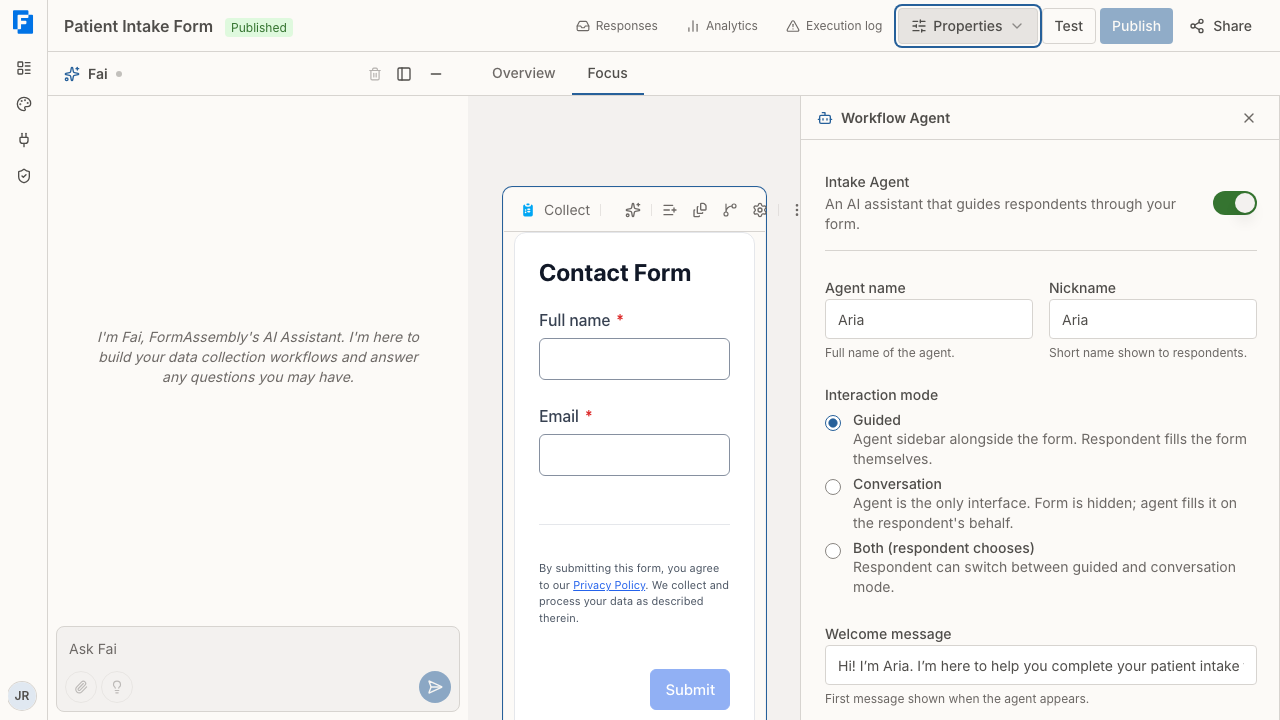
- Click Properties in the builder navigation to open the properties menu.
- Choose Agent to open the Workflow Agent panel.
This is where you enable and customize your Intake Agent, without leaving the workflow.
Enable the Agent
Turn on the Intake Agent switch to enable the agent. By default, new workflows do not have an agent enabled.
Once enabled, you'll see configuration options for your agent's identity, behavior, and voice.
Agent changes save automatically as part of your workflow draft, the same as any other builder edit — there is no separate save button for the agent.
Configure Agent Identity
Fill in the following details to give your agent a persona:
- Agent name (optional) — The agent's full name, such as "Aria" or "Alex." The name can be up to 255 characters. If you leave the name blank, FormAssembly uses "Intake Agent" wherever a display name is needed.
- Nickname (optional) — A shorter display name shown to respondents, up to 255 characters. If left blank, the full name is used.
- Welcome message (optional) — Text you write yourself, shown when the agent appears. For example: "Hi! I'm Aria, I'll help you through this today." The welcome message is not written by the agent, and the agent also writes its own greeting.
In conversation mode, the welcome message is shown on a start screen — the message with a Start button below it — the first time a conversation-mode form opens in a browser tab. The start screen does not appear on later steps, and it never appears in a Both workflow when the respondent switches to conversation. With no welcome message set, the start screen shows only the Start button, so it is worth setting one for conversation mode.
An agent that is enabled but unnamed is still a complete, valid configuration — respondents will simply see the default display name.
Write Persona Instructions
Use the Persona instructions field to shape your agent's tone and behavior. Write in plain language — think of it as coaching the agent on how to act. For example:
- "Be warm and reassuring. Use plain language."
- "Act as a knowledgeable healthcare intake specialist. Be patient and thorough."
- "Keep responses short and friendly. Use emoji sparingly."
These instructions guide the agent's personality across every interaction.
Choose an AI Model
Select which AI model powers your agent in the AI model dropdown:
| Model | Best For |
|---|---|
| Claude Sonnet 5.5 | General use (default) — balanced quality and speed |
| Claude Sonnet 5 | An earlier Sonnet model, if you prefer its behavior |
| Claude Haiku 4.5 | Faster responses at lower cost |
Enabling an agent leaves the model unset, and an unset or unrecognized model runs as Claude Sonnet 5.5 both in the dropdown and on the live form.
Choose an Interaction Mode
Select the interaction mode that fits your use case:
- Guided — Agent assists alongside a visible form
- Conversation — Agent handles everything through chat
- Both (respondent chooses) — Respondent can switch between guided and conversation
Configure Voice (Optional)
If you want your agent to speak to respondents, turn on the voice option. Turning voice on selects the Angela voice automatically. When voice is turned on, configure the following:
- Voice — Choose from the available voices (Angela or Adam).
- Speed (0.5 – 2.0) — Set a speed between 0.5 (slow) and 2.0 (fast). The default is 1.0.
- Speech context — A place to list domain vocabulary, one phrase per line (up to 100,000 characters), saved with the agent. Speech context does not currently change speech recognition.
With voice enabled, respondents get a microphone button and a mute button in the chat composer. Speech is transcribed as they talk, and each time they pause, what they just said is sent as a message. The microphone stays open while the respondent is quiet; it closes only if no audio reaches the server for about a minute, and the respondent sees a note that listening stopped. Speaking while the agent is talking stops playback — and if the agent is still writing its reply, it answers the new speech together with the previous message; once the reply is written, the new speech is sent as its own message.
If you later turn voice off, the voice, speed, and speech context settings are ignored at runtime even though they remain saved.
Using the AI Assistant to Configure Your Agent
You can also configure your Intake Agent through Fai, the built-in AI assistant in the builder. Fai is the chat-based helper available in every workflow builder session. Type a request in the Ask Fai message box and click the arrow button to send it. For example:
- "Add an intake agent called Aria who sounds like a healthcare professional"
- "Enable voice with the Adam voice and set the speed to 0.9"
- "Change the welcome message to: Welcome! Let me help you get started."
- "Remove the agent from this workflow"
Fai updates the agent configuration as part of the workflow — you'll see the changes reflected in the Workflow Agent panel. On a workflow that is already published, unpublished changes show as Update pending; a workflow that has never been published shows Draft.
Fai caveat — always name a voice. The builder's voice list has no empty choice, so the builder itself cannot leave voice on with no voice selected. Configuring the agent another way, such as through Fai, can. If voice is enabled with no voice, the agent settings cannot be saved and the workflow cannot be tested or published, and the Workflow Agent panel shows an inline error on the Voice dropdown. If the voice is set to something that is not one of the listed voices, the settings save without an inline error but Test and Publish are still blocked. Naming a voice in your request avoids both cases.
Testing Your Agent
Before publishing, test how your agent behaves from the respondent's perspective:
- Click Test in the builder navigation.
- The draft workflow opens in a new tab with a test-mode banner, including the Intake Agent if enabled.
- Interact with the agent to verify the welcome message, tone, and behavior match your expectations.
Test mode uses your draft configuration, so you can make changes and re-test without affecting your live form. Test only opens if the draft would pass Publish.
A test run really runs: emails are sent and records are created in connected systems. Use test data you are comfortable sending.
The Fill Test Data button is hidden in conversation mode, and in a Both workflow once the respondent switches to conversation.
Publishing Your Workflow with an Agent
When you're satisfied with your agent configuration:
- Click Publish in the builder navigation.
- Your workflow — including the Intake Agent — goes live.
The agent configuration is published as part of the workflow. There's no separate step to publish the agent. Any respondent who opens your form after publishing will see the agent.
If your account requires compliance review, Publish submits the workflow for review instead of taking it live, and the workflow goes live once it is approved.
Agent settings can block publishing in one case: a missing or unlisted voice while voice is enabled (see the Fai caveat above). Fix the voice selection in the Workflow Agent panel before you publish.
To share your published workflow, use the Share button in the builder navigation to get the link. Share is available once the workflow is published, and below desktop widths it shows only its icon.
What Respondents See
When a respondent opens your published workflow, the experience depends on the interaction mode you chose:
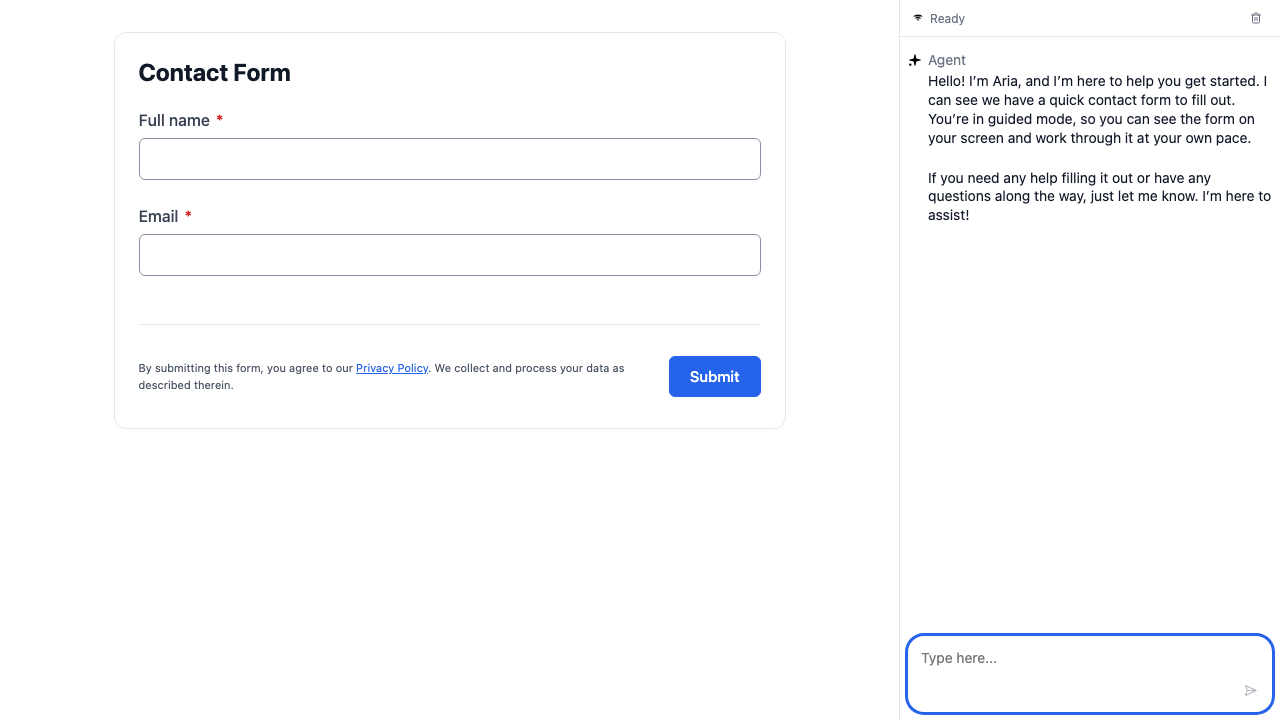
- Guided mode: The form appears on the page with the agent chat alongside it. Respondents fill in fields directly (like the Full name and Email fields on a contact form) and can ask the agent for help at any time. On small screens the agent panel sits below the form rather than beside it.
- Conversation mode: The respondent only sees the chat interface. The agent asks for the information it needs, grouping related questions (such as first and last name) where it can, and fills in the form automatically. The agent's current turn sits front and center at a larger size, with the agent's name and the time above it, and everything earlier is tucked behind an "earlier messages" toggle that opens the ordinary chat log. When the conversation is complete, the agent submits the form.
- Both (respondent chooses): Respondents start in guided mode and can switch to conversation whenever they like. When a respondent switches to conversation, the form is hidden and the agent chat expands to fill the page; switching back restores the side-by-side view. The chosen mode is remembered per workflow within the same browser tab, including on a later run of the same form in that tab, which then starts in the saved mode rather than guided.
On the Collect plan, the agent pane shows the "Powered by FormAssembly" badge, as the form does.
If your workflow does not have an agent enabled, respondents see the form by itself — the standard experience with no chat sidebar.
Chat controls respondents have
- A square icon button stops a reply that is still being written.
- Thumbs-up and thumbs-down rating buttons appear when the respondent hovers over or tabs to an agent reply.
- A trash icon clears the conversation. Clearing empties the chat and the agent starts again from the current step — the welcome message is not shown again, and answers already in the form are kept.
Conversations belong to one browser tab. The conversation continues across steps in the same tab, but a new tab or window starts a fresh conversation, and an idle conversation expires after about four hours. Answers already entered in the form are not affected.
Nothing from the chat is kept for you. Chat transcripts and message ratings are not saved with the response and are not visible to workflow owners — only the form answers are.
Language
A workflow can offer more than one language, and the agent's nickname and welcome message can be translated: when the workflow's translation includes them, they show in the respondent's language. Translations are added by asking Fai. See also: Form Design.
The agent pane follows the form's language: the chat composer placeholder, the send button, the voice and upload controls, the stop control and the "response was stopped" notice, the connection status once the agent is ready, the label on each agent message, and the notice shown when the session expires. For a right-to-left language the whole agent pane lays out right to left, like the form. Other text in the agent pane — the mode toggle, the Start button, and the rating and clear-history buttons — is English only.
File Uploads in Chat
A file field cannot be filled from chat, so the Intake Agent shows the respondent an upload control inside the conversation. The control enforces the field's accepted file types and size limit, and the respondent can choose a file or decline. In guided mode the agent offers the upload control only when the respondent asks for help with that field.
Address Checks
Once the Intake Agent has a complete address, it checks it using Google's address validation service, so that what lands in the form is a clean, standardized address.
- A confirmed address is written back in its standardized form.
- An adjusted address is read back to the respondent, and the version they confirm is the one used.
- An address that cannot be confirmed prompts the respondent to double-check the parts named. If they insist the address is correct, it is accepted as given.
- If the check cannot run — for example, the service is unavailable — the address is used exactly as typed.
Save and Resume
If your collect step offers save-and-resume, respondents can ask the Intake Agent to save their progress. The agent opens the form's save dialog, where the respondent confirms or enters the email address the resume link is sent to. Nothing is saved until the respondent completes that dialog, and the agent says the save is awaiting their confirmation rather than that it is done. If the respondent dismisses the dialog, the agent treats that as a decision and does not retry.
If the step does not offer save-and-resume, the agent tells the respondent the form cannot be saved.
When a Submit Is Blocked
There are two cases, and they behave differently:
- The agent's submit is blocked. The agent learns right away and tells the respondent what needs fixing — a field error, a file that is still uploading, or a request that failed.
- The respondent's own Submit is blocked. The field errors appear on the page as usual, and the agent picks them up with the respondent's next message.
In conversation mode, the Intake Agent is instructed to ask for every required field, and the form's own validation still blocks a submit that is missing one.
Reusing an Agent Across Workflows
In FormAssembly, an Intake Agent belongs to a single workflow. There is no standalone agent library, so the same persona cannot yet be assigned to several workflows at once. To use one persona in multiple places, configure it separately on each workflow, or use Clone on a workflow that already has the agent you want. The clone is an unpublished draft named "Copy of …", it includes the source workflow's unpublished changes, and it must be published before respondents see it.
Tips & Troubleshooting
- Agent not appearing in test mode? Make sure the Intake Agent switch is on in the Workflow Agent panel. The agent only appears when explicitly enabled.
- Agent not appearing on your live form? You need to click Publish after enabling or changing the agent. Draft changes aren't visible to respondents until published.
- Agent missing on an embedded form? The Intake Agent appears only on the workflow's hosted form link. Share that link instead of embedding the form if you need the agent.
- Keep persona instructions focused. Short, clear instructions produce more consistent agent behavior than long, detailed ones. Start simple and refine based on testing.
- No name set? The agent still works and introduces itself as "Intake Agent." Add a name and nickname if you want a more personal experience.
- Set a welcome message for conversation mode. Without one, the start screen shows only the Start button.
- Each workflow has its own agent. In FormAssembly, agents are configured per workflow. If you want the same persona on multiple workflows, configure it on each one separately.
- Cloning a workflow copies the agent. When you clone a workflow, the agent configuration comes along with it — a quick way to reuse a persona as a starting point.
- Changing the agent name won't break anything. You can rename your agent at any time without affecting your workflow's URL or existing responses.
- Testing has real effects. A test run sends emails and creates records in connected systems, so use test data.
Was this article helpful?