Roles & Permissions
How roles decide what each person on your account can do — the three built-in roles, the permission catalog behind them, and how a role is assigned or changed.
What are roles and permissions in FormAssembly?
A role in FormAssembly is a named bundle of permissions that determines what a person can do inside your account — build workflows, view submissions, invite teammates, manage billing, and so on. A permission is a single capability, such as "Create new workflows" or "Export submission data".
Every member of a FormAssembly account holds exactly one role. There are no per-user exceptions and no stacking of multiple roles, so the answer to "what is this person allowed to do?" is always a single lookup. If someone needs a capability their role doesn't include, assign them a different role.
Roles are separate from two other systems you may encounter:
- Your plan determines which features the whole account can use. A person can only do something if their role grants the permission and your plan includes that feature.
- Resource-level sharing determines who can see or edit one specific workflow or report. Sharing is independent of roles — a role says what kind of actions someone can take, sharing says which items they can take them on.
Permissions are additive. A member starts with nothing and gains capabilities through their role. Removing a permission doesn't actively block someone — it simply means the capability was never granted.
The three preset roles
Every FormAssembly account is created with three preset roles, and the person who created the account is assigned Admin automatically. All three are marked Built-in on the Roles tab.
Admin
Full account access. Admins can do everything: build and publish workflows, view and export submissions, manage team members and roles, configure identity providers, register API clients, change account settings, and manage billing. Intended for account owners and IT administrators.
Builder
Create and manage workflows. Builders hold 12 permissions: they can view, create, edit, publish, delete, and share workflows, view, export, and delete submitted responses, view compliance state, manage themes, and view the member list. Builders see the member list so they can choose whom to share a workflow with or hand it to. Builders cannot manage team membership, change account settings, or access billing. Intended for the people doing the day-to-day work of building and operating forms.
Viewer
Read-only access via resource-level sharing. The Viewer role holds three permissions — View workflows, View submissions, and Export submissions — so a Viewer can read workflows and their responses and export that data, but cannot create, change, or delete anything. Because a Viewer owns no workflows, the role reaches only the workflows someone has shared with it. Intended for stakeholders who need scoped, read-only visibility into results.
A Viewer with no shared resources can authenticate but sees nothing. That is by design — pair the Viewer role with resource-level sharing.
Why do I see "Member" and "Admin" in some places?
FormAssembly shows one system two ways. The Roles tab names the three roles above; the Members tab and the invite form use only the two words Member and Admin. The Member/Admin label is derived from the role a person holds, not stored separately — anyone whose role confers admin access is shown as Admin, and everyone else is shown as Member.
| Member/Admin label | Role it assigns or reflects |
|---|---|
| Admin | Admin |
| Member | Builder |
Because the Member/Admin vocabulary has no word for Viewer, a member holding the Viewer role is displayed as Member on the Members tab. To see exactly who holds a given role, open that role from the Roles tab and read its Members section. The Viewer role, and any custom role, is assigned from a role's detail page rather than from the Members tab.
Where do I manage roles and members?
Roles and membership both live on the Team Management page in FormAssembly.
- In the account navigation, click Team.
- On Team Management, use the tabs at the top:
- Members lists everyone in the account with the derived Member or Admin label for each person. This is where you promote or demote a member between Admin and Builder. - Roles lists every role defined in the account, with its description and whether it is Built-in, and holds the New role button for creating a custom role. - Groups lets you collect people into a user group so you can share workflows with the whole set at once. - Guests lets someone from another FormAssembly account work in yours.
Groups and guests do not grant roles or permissions themselves. See also: Guest Access & User Groups.
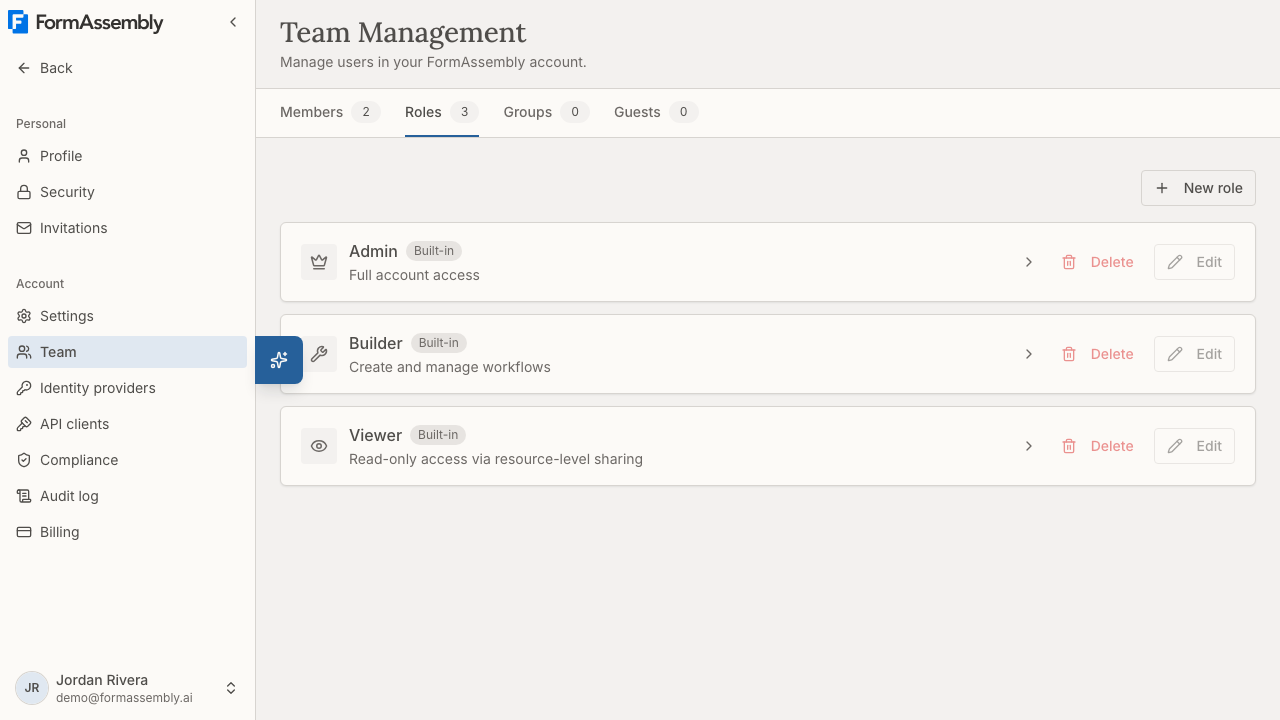
Each role in the list shows an Edit button and a Delete button, but both buttons are disabled — existing role definitions cannot be changed or removed in FormAssembly yet, custom roles included. Click the role name itself to open its detail page. Role names are links only for account admins; for everyone else the names are plain text and the detail page cannot be opened.
How do I see what a role can do?
Click a role name on the Roles tab to open its detail page. The page has two parts:
- A Permissions heading that shows how many permissions the role currently holds out of the total available — for example, Permissions (26 of 26 granted) for Admin.
- A Members section listing everyone who currently holds that role.
The count leaves out permissions your plan does not include, so Admin reads 26 of 26 granted only on the Enterprise plan. On a lower plan the total is smaller, because plan-gated permissions are not counted.
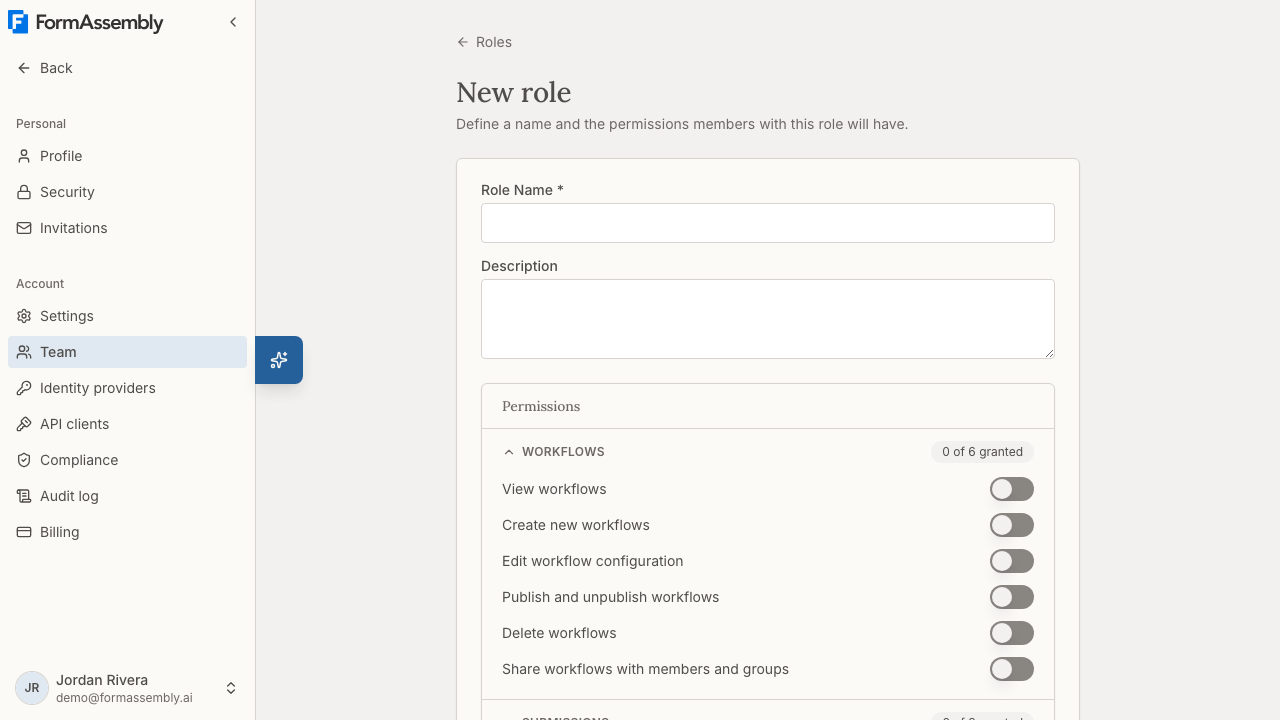
Permissions are grouped into categories you can expand one at a time: WORKFLOWS, SUBMISSIONS, TEAM, ROLES, ACCOUNT, COMPLIANCE, and THEMES.
Permission reference
The tables below show all 26 permissions in the FormAssembly catalog, what each permission allows, and which preset roles hold it.
Workflows
| Permission | What it allows | Admin | Builder | Viewer |
|---|---|---|---|---|
| View workflows | View workflows in the account | ✓ | ✓ | ✓ |
| Create workflows | Create new workflows | ✓ | ✓ | — |
| Edit workflows | Edit workflow configuration | ✓ | ✓ | — |
| Publish workflows | Publish and unpublish workflows | ✓ | ✓ | — |
| Delete workflows | Delete workflows | ✓ | ✓ | — |
| Share workflows | Share workflows with members and groups | ✓ | ✓ | — |
Workflow permissions decide what a person may do with a workflow, not which workflows they can reach. Which individual workflows someone can act on is decided by ownership, admin status, or a share. A Builder holds Edit workflows, for example, but can only edit the workflows they own or that have been shared with them at an access level that permits editing.
Submissions
| Permission | What it allows | Admin | Builder | Viewer |
|---|---|---|---|---|
| View submissions | View submitted responses | ✓ | ✓ | ✓ |
| Export submissions | Export submission data | ✓ | ✓ | ✓ |
| Delete submissions | Delete individual submissions | ✓ | ✓ | — |
All three preset roles hold Export submissions, and the permission is available from the Collect plan, so Admins, Builders, and Viewers can export a workflow's responses from its Responses page. See also: Viewing Responses.
Team
| Permission | What it allows | Admin | Builder | Viewer |
|---|---|---|---|---|
| View team | View the member list | ✓ | ✓ | — |
| Invite members | Invite new members | ✓ | — | — |
| Manage member roles | Change member roles | ✓ | — | — |
| Remove members | Remove members from the account | ✓ | — | — |
| Manage groups | Create, rename, and delete user groups, and edit their members | ✓ | — | — |
Roles
| Permission | What it allows | Admin | Builder | Viewer |
|---|---|---|---|---|
| Manage roles | Edit role definitions and create new roles | ✓ | — | — |
Account
| Permission | What it allows | Admin | Builder | Viewer |
|---|---|---|---|---|
| Account settings | Edit account name, timezone, and preferences | ✓ | — | — |
| Billing | View and manage billing and plan | ✓ | — | — |
| Cancel account | Cancel the account | ✓ | — | — |
| Password policy | Configure the account's password rotation policy | ✓ | — | — |
| Configure identity providers | Configure identity providers (SAML/OIDC) for respondent authentication | ✓ | — | — |
| Designate which identity provider enforces platform login for the account | Choose the identity provider that would enforce sign-in to FormAssembly for the account's own members | ✓ | — | — |
| API clients | Register API clients for the account and manage their secrets | ✓ | — | — |
Configuring identity providers requires the Enterprise plan. The permission governs respondent authentication: it lets a workflow require the people filling out your forms to sign in. Configuring identity providers does not change how your own team signs in to FormAssembly, which is not available yet — see also: Single Sign-On (SSO).
The permission to designate which identity provider enforces platform login also requires the Enterprise plan, and no screen uses it yet, because team sign-in through an identity provider is not available in FormAssembly (see also: Single Sign-On (SSO)).
Compliance
Compliance permissions are available on the Enterprise plan only.
| Permission | What it allows | Admin | Builder | Viewer |
|---|---|---|---|---|
| View compliance | View compliance state and the audit trail | ✓ | ✓ | — |
| Review compliance | Submit verdicts on workflow compliance | ✓ | — | — |
| Configure compliance | Configure compliance policies | ✓ | — | — |
Review compliance is what makes someone a Reviewer in FormAssembly. There is no separate reviewer setting — reviewer status comes from the role a person holds.
Themes
| Permission | What it allows | Admin | Builder | Viewer |
|---|---|---|---|---|
| Manage themes | Create, edit, clone, and delete themes; set the account default theme | ✓ | ✓ | — |
Theme management is available from the Collect plan.
How do I change a member's role?
Changing which role a member holds is available today, and FormAssembly offers two places to do it: the Members tab, which toggles a person between Admin and Builder, and a role's own detail page, which can assign any role in the account.
From the Members tab (Admin or Builder)
- In the account navigation, click Team and open the Members tab.
- Find the person you want to change.
- Click the row actions button for that person — it is labelled Actions for followed by their name.
- Choose the role item, which toggles between two states depending on the role the person holds today:
- Promote to admin assigns the Admin role. - Demote to member assigns the Builder role.
There is no list or dropdown of all three roles on a member's row. The Viewer role and custom roles cannot be assigned from this control — promoting and demoting move a member between Admin and Builder only.
From a role's detail page (any role)
- In the account navigation, click Team and open the Roles tab.
- Click the name of the role you want the person to hold.
- In the role's Members section, find the person and use the role picker on their row — it is labelled Role for followed by their name. The picker lists every role in the account, Viewer and custom roles included.
- Click Save.
The role detail page is the only place to give someone the Viewer role or a custom role, and it is open to account admins only.
Role is also set at invite time. The default role for a new invite is Builder.
Two other conditions apply to role changes: you must be an admin of the account to change anyone's role, and the person you are changing must already be a member of the account. Selecting the role a member already holds does nothing.
You also cannot hand out a permission you do not hold yourself. FormAssembly only lets you assign a role whose every permission is included in your own role, so a role you could not fully grant is offered disabled with the reason shown. This applies wherever a role is chosen — inviting a member, promoting or demoting someone, choosing a role on the role detail page, and creating a guest grant.
Can I change my own role?
Yes. An admin can change their own role, including demoting themselves, as long as the change leaves the account with another admin. The one constraint is that the last remaining admin cannot be demoted — FormAssembly rejects the change whether you are demoting yourself or someone else. Promote a second member to Admin first, then retry.
Can I create custom roles?
Yes. Creating a custom role is available on the Automate plan and above, to members whose role includes Manage roles. Create one when none of the three preset roles matches what a group of people actually needs.
- In the account navigation, click Team and open the Roles tab.
- Click New role.
- On the New role page, enter a Role Name. The name is required, can be up to 64 characters, and must be unique in the account.
- Optionally enter a Description, up to 256 characters.
- Under Permissions, expand each category — WORKFLOWS, SUBMISSIONS, TEAM, ROLES, ACCOUNT, COMPLIANCE, THEMES — and switch on each permission the role should grant.
- Click Save. Click Cancel to return to the Roles tab without creating the role.
Two things can interrupt step 5:
- Switching on a sensitive permission opens Enable a sensitive permission?, which explains what the permission allows. Click Enable permission to confirm. Confirmation is required when the permission is added to the role, not each time someone uses it.
- A permission above your account's plan is locked and says which plan unlocks it. You cannot add a plan-gated permission to a custom role until the plan includes it.
The New role button is shown only to users whose role includes Manage roles, and it does not appear on personal accounts, which have a single member. On the Collect plan the button is disabled with the tooltip "Upgrade to the Automate plan or higher to create custom roles"; accounts on the Collect plan use the preset roles as they are.
What you cannot do yet:
- Edit which permissions an existing role grants. The Edit button on the Roles tab is visible but disabled.
- Rename a role.
- Delete a role. The Delete button on the Roles tab is visible but disabled.
These limits apply to custom roles as well as the three built-in ones, so decide a custom role's name and permission set before you save it. Until role editing is available, pair the closest role with resource-level sharing to narrow what a person can see.
Sensitive permissions
Some permissions carry significant organizational impact, so FormAssembly shows a confirmation prompt explaining what the permission allows before it is added to a role.
The sensitive permissions are:
- Manage member roles — grants the ability to change what others can do, including escalating their own access.
- Invite members — adds new members to the account.
- Remove members — can remove members, including admins.
- Manage groups — adding someone to a group gives them every workflow shared with that group.
- Manage roles — can redefine what any role can do account-wide.
- Billing — access to payment and subscription information.
- Cancel account — can permanently cancel the account.
- Password policy — can force every member to rotate their password on a cadence.
- Configure identity providers — controls how respondents authenticate before filling out your forms.
- Designate which identity provider enforces platform login for the account — would control how the account's own members sign in to FormAssembly.
- API clients — registers apps that any FormAssembly user can connect, under the account's name.
- Share workflows — widens who can reach a workflow and the submission data behind it.
- Delete submissions — permanently deletes collected data.
- Review compliance — can approve or block workflows on behalf of the account.
- Configure compliance — can change compliance policy affecting all workflows.
How does FormAssembly stop me from locking myself out?
Your account must always have at least one member holding each of three governing permissions: Manage member roles, Cancel account, and Manage roles. These permissions are what make an account governable — without them, nobody could manage membership, redefine roles, or close the account.
FormAssembly checks this at every action that could leave a permission ungoverned:
- Changing a member's role is rejected if that person is the only holder of a governing permission and the new role lacks it. In practice this means the last remaining Admin cannot be moved to another role.
- Removing a member is rejected if they are the only holder of a governing permission.
When an action is blocked, the error message names the permission that would be left ungoverned. To proceed, first grant that permission to another member — by promoting them to Admin — then repeat the action.
The same protection will apply to editing and deleting role definitions once those actions are available.
How do plans affect roles and permissions?
Some permissions are only available on certain plan tiers. A permission your plan does not include has no effect for members holding it.
- Compliance permissions require the Enterprise plan.
- Configure identity providers requires the Enterprise plan, as does the permission to designate which identity provider enforces platform login.
- Manage roles (editing roles and creating custom roles) requires the Automate plan.
- All other permissions, including Export submissions, are available from the Collect plan.
Where a permission is outside your plan, the role detail page shows an upgrade prompt in place of that permission rather than a blank space or an error. One area behaves differently: if you open Identity providers without the Configure identity providers permission, FormAssembly returns you to the Workflows page instead of showing an upgrade screen. If you land on Workflows unexpectedly, that is why.
Downgrades do not destroy your role setup. If your plan changes to one that no longer includes a permission, roles keep their definitions and the affected permissions simply become inactive until the plan is restored.
How are permissions enforced?
A member's effective access is the overlap between what their role grants and what your plan includes. Buttons, navigation items, and fields in FormAssembly reflect that effective access — they appear disabled or hidden when a capability is not granted — but the interface is only a reflection. Access is enforced independently behind the scenes, so hiding or showing a control is never the thing that protects your data.
Every role and membership change is recorded, including who made the change and when, but there is no page for browsing those records yet. The Audit Trail on the Compliance logs view records compliance events only — it does not list role or membership changes — requires the Enterprise plan, and offers free-text search, a Source filter, and a date-range filter, with a Download CSV button. See also: FormAssembly Logs.
Tips & Troubleshooting
- Someone can't export submissions. Export submissions is held by all three preset roles on every plan, so check which workflows that person can reach: export happens on a workflow's Responses page, and a role only reaches the workflows it owns or that have been shared with it. See also: Viewing Responses.
- A Viewer signs in and sees nothing. That is by design — the Viewer role can read workflows and responses but owns none, so there is nothing to show until someone shares specific workflows or reports with that person.
- You invited a "Member" and can't find that name on the Roles tab. Member is the derived label used on the Members tab and the invite form; the role it assigns is Builder. Open the Builder role from the Roles tab to see its permissions and its members.
- The Edit and Delete buttons on the Roles tab do nothing. Both buttons are disabled because existing role definitions cannot yet be changed or removed in FormAssembly. You can create a new role, but you cannot edit, rename, or delete one.
- The New role button is disabled, or missing. A disabled button with an upgrade tooltip means your account is on the Collect plan; creating custom roles needs the Automate plan or higher. A missing button means your role does not include Manage roles, or you are on a personal account, which has a single member.
- You can't assign the Viewer role from the Members tab. The member row actions only promote to Admin or demote to Builder. Assign Viewer, or any custom role, from the role's detail page using the role picker in its Members section.
- Role names on the Roles tab aren't clickable. Role detail pages are open to account admins only. Ask an admin to check the role's permissions or members for you.
- You can't demote or remove a member. They are probably the last remaining admin, or the only person holding one of the governing permissions (Manage member roles, Cancel account, or Manage roles). Promote another member to Admin first, then retry.
- A promote or demote option is shown disabled. You cannot assign a role that carries a permission your own role does not include. Ask another admin whose role covers those permissions to make the change.
- You need one person to have a slightly different set of permissions. FormAssembly does not support per-user exceptions. On the Automate plan or higher, create a custom role with exactly the permissions that person needs; otherwise pick the closest preset role and use resource-level sharing to scope what they can see.
- A permission appears in the list but doesn't work. Check your plan. Compliance permissions and the two identity provider permissions need the Enterprise plan, and role management needs the Automate plan. A permission outside your plan stays in the role definition but has no effect until the plan includes it.
Was this article helpful?