Single Sign-On (SSO)
How to connect your organization's identity provider and require respondents to sign in through it before they can start a workflow.
This article is for account administrators. Configuring an identity provider is an account admin task on the Enterprise plan, done from the Identity providers page in the primary navigation sidebar; if you do not have both the admin permission and the Enterprise plan, FormAssembly redirects you away from that page to the Workflows page rather than showing a locked or upgrade screen, which is why you may land on the Workflows page instead.
If you are not an admin — or you want to know what signing in through SSO looks like as an end user, and what SSO changes about two-factor authentication and password resets — see Account Security instead.
What is Single Sign-On in FormAssembly?
Single Sign-On (SSO) lets people authenticate with your own identity provider (IdP) — such as Okta, Entra ID, Ping, or any SAML 2.0 or OpenID Connect (OIDC) provider — instead of a FormAssembly password. In FormAssembly, SSO is configured once as an identity provider record on your account, and that record is then required on the workflows you want to protect.
Identity provider records you configure today are used for workflow authentication: respondents must sign in through your identity provider before they can open or continue a workflow, so a form can be restricted to your employees, students, or members. SSO for team sign-in — your own FormAssembly members signing in to the platform through your identity provider — is not yet available; see "Can I use SSO for team sign-in?" below.
Before you begin
Collect the following before you start, because FormAssembly cannot verify a provider connection without them:
- Your identity provider's issuer (entity ID for SAML, issuer URL for OIDC). This value is permanent on the provider record once saved.
- For SAML: the IdP sign-on URL and the signing certificate your provider uses to sign assertions.
- For OIDC: the discovery URL (or the explicit endpoints), the client ID, and the client secret from an application you create in your provider.
- Confirmation that your provider releases an email address for every user. A provider that releases no email address cannot confirm anybody in FormAssembly — the sign-in fails before any account is matched.
You also need permission to create an application or service provider entry in your identity provider, because FormAssembly's sign-in URLs have to be registered there.
How do I add an identity provider?
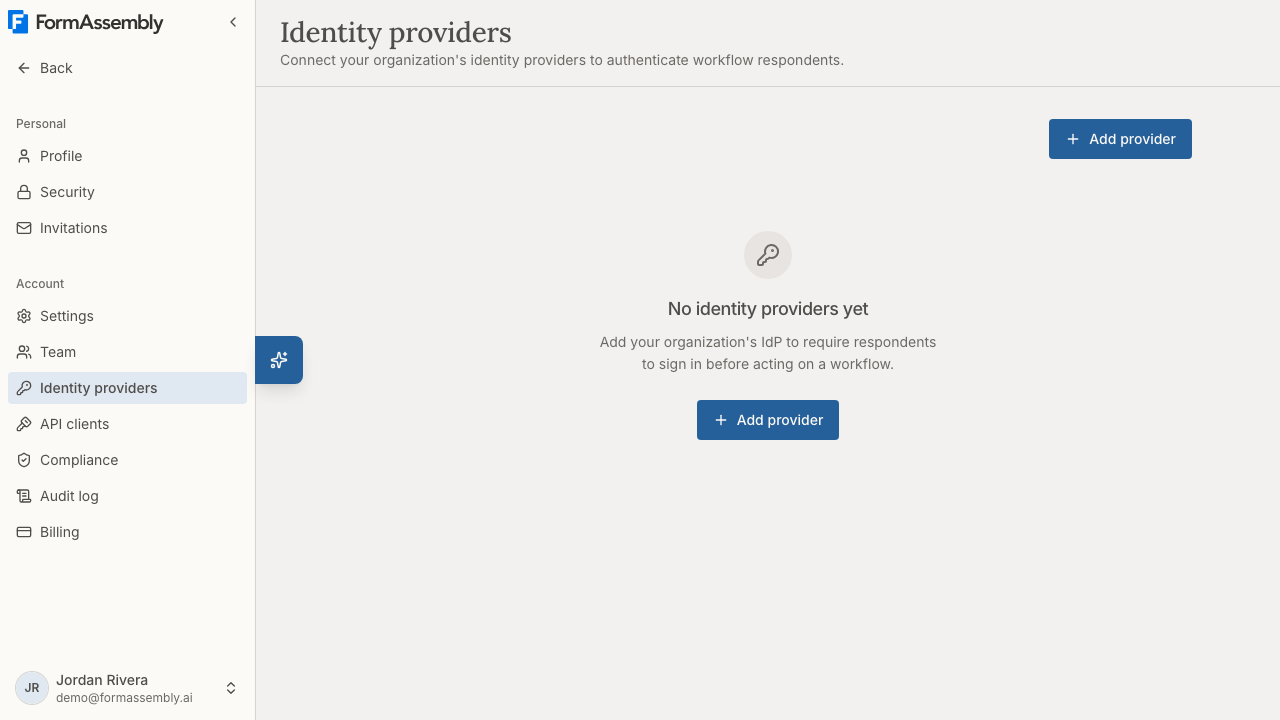
- Open the primary navigation sidebar and click Identity providers.
- Click Add identity provider.
- Choose the protocol — SAML or OIDC. The protocol cannot be changed later.
- Enter a name. The name is an internal label for admins, so use something that identifies the population the provider serves, such as "Staff Okta" or "Student Entra ID".
- Enter the issuer exactly as your identity provider publishes it.
- Fill in the protocol-specific fields (below) and save the provider.
- Copy the FormAssembly URLs from the saved provider record into your identity provider's application configuration.
- Test the connection with one user before you require SSO for anyone else.
You can add more than one provider, including several of the same protocol. That is the normal setup when different populations authenticate against different directories — for example, staff through one provider and contractors through another.
SAML 2.0 providers
For a SAML provider, supply:
- The identity provider's sign-on URL.
- The Signing certificate (PEM). A provider record holds one signing certificate, which FormAssembly stores as supplied because certificate material is public. To rotate a certificate, replace the value on the provider record.
- Optionally, an attribute mapping for the subject, email address, and display name. Provide a mapping when your identity provider releases these values under non-standard attribute names.
If you do not supply a mapping, FormAssembly uses the SAML NameID as the subject and looks for email and display name under the common attribute names your provider is likely to send.
OIDC providers
For an OIDC provider, supply:
- The discovery URL, or the explicit authorization, token, and JWKS endpoints if your provider does not publish discovery.
- The client ID and client secret of the application you created in your provider. The client secret is encrypted by FormAssembly and is not displayed again after saving.
- The scopes to request. Include whatever scope your provider requires to release an email address.
- Optionally, a claim mapping for the subject, email address, and display name.
Which URLs do I register at my identity provider?
Each saved provider record has its own set of FormAssembly URLs, generated from that record. Copy them from the provider record into your identity provider:
- SAML: the service provider metadata URL, the entity ID, and the assertion consumer service (ACS) URL, which receives the signed assertion.
- OIDC: the redirect URI, which receives the authorization response.
These URLs are a stable contract: once a provider record exists, its URLs never change shape, so you do not need to revisit your identity provider configuration when you edit other provider settings.
FormAssembly supports service-provider-initiated sign-in only. Sign-in must begin at FormAssembly — from the sign-in card on a gated workflow. An assertion that arrives from a tile or bookmark in your identity provider's dashboard, with no sign-in request from FormAssembly, is rejected. Tell your users to start at FormAssembly rather than at the IdP portal.
What cannot be changed after a provider is created?
Two fields on a provider record are permanent:
- The protocol (SAML or OIDC).
- The issuer.
If either changes at your identity provider, add a new provider record and point your workflows at the new record. FormAssembly does not allow these edits because a subject identifier is only meaningful within one issuer: changing the issuer would silently change who every previously confirmed identity refers to.
Everything else — name, endpoint URLs, certificate, client secret, scopes, mappings — can be edited in place. Editing those values keeps every existing reference to the provider working, which is how you rotate a certificate or migrate an endpoint without breaking published workflows.
Can I use SSO for team sign-in?
Not yet. Identity providers you configure in FormAssembly are used for workflow (respondent) authentication only. Platform sign-in through your own identity provider is planned for the Enterprise plan but is not available today, so there is nothing to designate and no procedure to follow.
What you cannot do yet:
- You cannot make one of your provider records the sign-in method for your FormAssembly members. Members continue to sign in with email and password, or with Google or Apple.
- Just-in-time provisioning and SCIM are not available. Membership is managed on the Team page, by invitation or by approving a join request.
- Multi-factor authentication for your members is handled by FormAssembly rather than delegated to your identity provider.
For how member sign-in, two-factor authentication, session timeouts, and password resets work today, see Account Security — that article owns those rules, and this article does not restate them.
How do I require SSO on a workflow?
You can require your identity provider on a workflow so that only authenticated people can open or continue it. This is the setting to use for internal request forms, employee onboarding, or anything where an anonymous link is not acceptable.
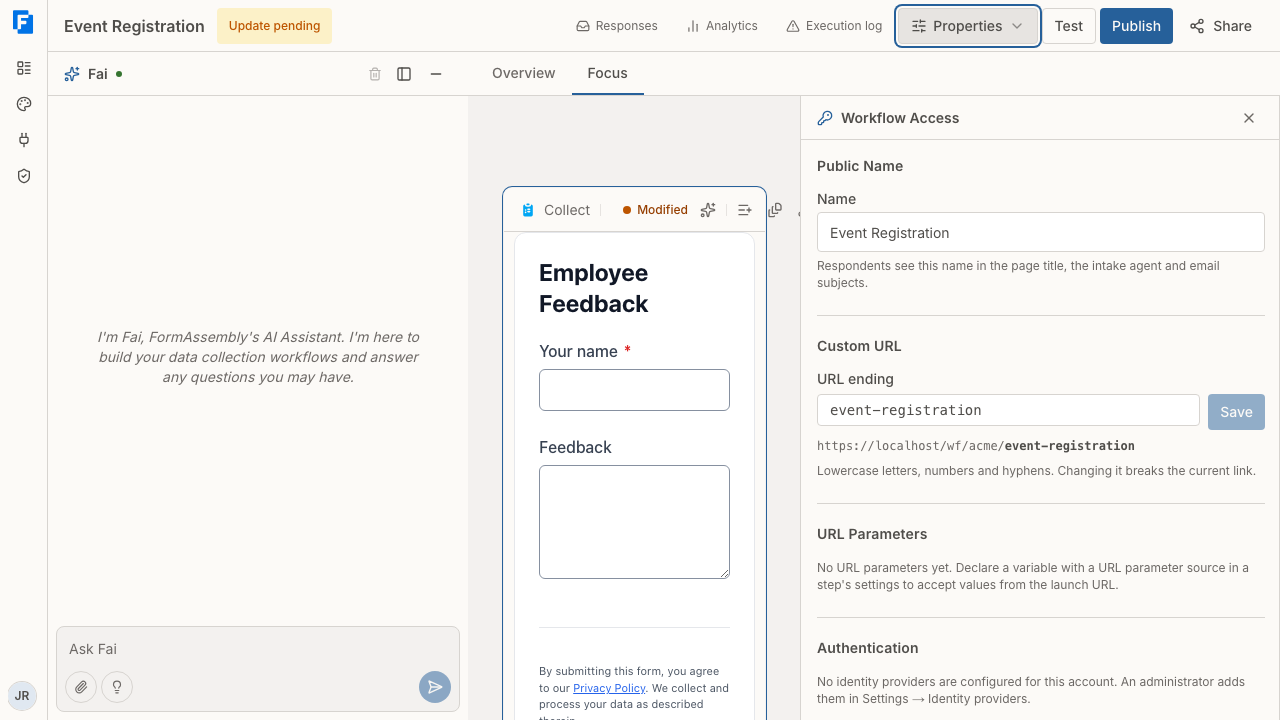
- Open the workflow in the builder.
- Click Properties in the workflow's top navigation.
- In the Properties panel, open Access, then Authentication.
- Choose the identity provider that respondents must sign in through, then click Publish.
Respondents who open the workflow see a sign-in card instead of the first step, and the form is not rendered until they have signed in. Embedded workflows show the same sign-in card in place of the form; the sign-in itself opens as a full-page navigation off your host page and returns the respondent to the FormAssembly-hosted run page.
What respondent sign-in does and does not do
- Respondent sign-in is not a platform login. It establishes identity for one workflow run. It creates no FormAssembly user, grants no role, and gives no access to the builder, responses, or any other workflow.
- A signed-in respondent is recorded as the run's actor, so approvals, signatures, and audit entries are attributed to that person rather than to an anonymous visitor.
- Save and resume still works. On a workflow gated by an identity provider, the emailed resume link locates the saved run but is not proof of identity: following it prompts a fresh sign-in, and the run resumes only when the same person is confirmed again.
- Assignment invitations into a gated workflow are routing credentials, not proof. Clicking the invitation takes the assignee to your identity provider; the invitation is only spent once a confirmed sign-in comes back, so an assignee who abandons or fails the sign-in can retry with the same link.
- Termination at your identity provider takes effect at the next sign-in challenge. FormAssembly does not cache directory membership, but a respondent who is already working in a run keeps their live session for up to four hours before the next challenge refuses them.
- Mailbox verification is separate. Signing in through your identity provider proves directory identity, not that the person receives mail at the asserted address, so FormAssembly records the provider confirmation rather than marking the address mailbox-verified.
Disabling a provider
Provider records are disabled, never deleted, because published workflows and previously confirmed identities keep referring to them.
Disable a provider to stop new sign-ins through it. FormAssembly checks the disabled state both when a sign-in starts and again when the response comes back from your identity provider, so a provider disabled mid-sign-in still refuses the attempt. Existing references and previously confirmed identities stay intact, so re-enabling the provider restores sign-in with no reconfiguration.
Before disabling a provider, check that no published workflow still requires it — otherwise the affected respondents cannot sign in at all.
A disabled provider blocks publishing. A workflow whose chosen provider has been disabled shows that provider as "{name} (disabled)" in the Authentication setting, and the builder refuses to publish the workflow until you re-enable the provider or choose another one. A saved workflow can also hold a stale reference — a provider setting that no longer resolves to any configured provider record. The builder says so and blocks publishing in the same way until you choose a configured provider.
Tips & Troubleshooting
- "This provider cannot confirm anybody" / sign-in fails with no account matched. Your identity provider is not releasing an email address. Add the scope or attribute that releases email, or set an attribute or claim mapping on the provider record that names where the address is sent.
- Sign-in from your IdP dashboard tile does nothing. FormAssembly accepts service-provider-initiated sign-in only. Have users start at the FormAssembly workflow link, or point the tile at that link instead of sending an unsolicited assertion.
- SAML signature or audience errors. Confirm that the certificate on the provider record is the current signing certificate, and that the entity ID and ACS URL registered at your identity provider match the values shown on the provider record exactly, including protocol and trailing path.
- Timestamp or clock-skew errors. FormAssembly allows a small clock difference between systems. If assertions are refused as expired or not yet valid, check time synchronization on your identity provider.
- A respondent's sign-in is refused even though their address looks right. The address already belongs to a respondent who proved their mailbox or who is linked to a different provider. FormAssembly refuses rather than silently merging two identities; reconciling the records is a deliberate admin action.
- Publishing is blocked with the provider shown as disabled. Re-enable the provider on the Identity providers page, or choose a different provider in Properties → Access → Authentication, then publish again.
- You changed identity providers, not just endpoints. A new issuer means a new provider record. Add the new provider, repoint any gated workflows, verify a sign-in, then disable the old record.
- Always test with one account first. Requiring a provider on a published workflow affects every respondent, so confirm one successful sign-in round-trip before you share the link.
Was this article helpful?