Conditions & Validation
How to show or hide form content with conditions, and how required fields, validation rules and input formats check a respondent's answers.
How conditions control what a respondent sees
A condition is a rule that makes a field, section or page appear only while earlier answers match it. In FormAssembly, a field with a condition stays out of the form until the condition is true, so respondents answer only the questions that apply to them.
A show/hide condition reads fields on the current form. It cannot read an answer collected in an earlier workflow step, and a condition that names a field on another step blocks publishing. To act on an answer collected in an earlier step, branch the workflow instead (see also: Routing & Conditions).
A condition may only reference fields that come before its carrier in the form:
- A field can reference any field earlier in the form. Of two fields side by side in one row, the left one comes first.
- A section can reference fields that come before the section. Fields inside the section do not count.
- A page can reference fields on earlier pages only.
Hidden fields and calculated fields are valid operands, because both carry a value the form can read. A field, section or page with nothing before it offers no condition at all, and a field with Hidden from respondents turned on offers none either. A condition already stored on an item with nothing before it still shows, so you can remove it.
How do I add a condition to a field or section?
- Open the collect step in Focus view in the workflow builder.
- Click the field or section on the canvas, then click the pencil to open its settings panel.
- Open the Visibility group.
- Turn on Only show when….
- Pick a field in the first condition row, then pick an operator.
- Enter or pick the value to compare against.
- Click Add condition to add another row if you need one.
With two or more rows, the Match line offers Match All, Any or Custom. Match All requires every row to be true, Any requires one, and Custom lets you write your own combination of the row letters.
To remove a condition, turn off Only show when…. FormAssembly asks "Remove this condition?" before removing it, and says the field or section will always be shown.
To give a page a display condition, see Layout, Pages & Media.
Operators the condition rows offer
Each row compares one field against a value. The operators are:
- is and is not compare the answer with a single value.
- is one of and is not one of compare the answer with a list of values you build in the row.
- contains and does not contain test whether an answer includes the value. On choice fields, these are offered only where more than one option can be selected.
- The comparison operators compare numbers, dates and times.
- starts with, does not start with, ends with and does not end with test the beginning or end of an answer.
- is between takes a From and To pair, and matches both ends of the range as well as everything inside it.
- is empty and is not empty take no value.
A choice field offers only the operators that can match it: is, is not, is one of, is not one of, is empty, is not empty, and contains / does not contain on a field that accepts more than one answer. FormAssembly compares a choice field by option, not by the option's label, so renaming an option does not break the condition.
A date condition can compare against a fixed date, against today, or against a relative date such as -30d. You type those values rather than picking them from a calendar. today is the date in the workflow's time zone, or the account's, the same date that LOCALTODAY() returns.
The fx button beside a value opens the formula editor, so the rule can compare against a computed value instead of a fixed one. The formula may read this form's fields that come before the carrier. To calculate a value from answers, see Calculations & Default Values.
When conditions update and when they save
Conditions update as soon as an answer changes. For text fields, the condition updates when the respondent leaves the field.
A condition saves only when it is complete. While a row is missing its field or its value, the panel reads "Not saved until a condition is complete." If the field already had a condition, that condition stays in effect until the new one is complete.
Conditions nest. A field is hidden when any enclosing condition is false: its own, its section's, or its page's. Showing a section does not reveal a field whose own condition is still false.
In a repeatable section, conditions are scoped per entry: a condition can read its own entry and fields outside the section, but not sibling entries.
FormAssembly discards the answers in fields that a condition hides when the respondent submits the form.
In the builder canvas, conditional fields, sections and pages carry a dashed outline and a Conditional pill so you can see and edit them while you build.
If you move a field so that a condition now points at a field after it, FormAssembly applies the move and shows a message naming the affected conditions. Publishing is blocked until you move the referenced field above the carrier or change the condition.
The Validation group
The Validation group in a field's settings panel answers one question: what counts as a valid answer? It holds Required, Read-only, the rules for that control type, and one Error message. You can also ask Fai, FormAssembly's AI assistant, to set any of these rules.
To open it, click the field on the canvas in Focus view, click the pencil, then open Validation.
- Required means the respondent must answer before the form is submitted. The canvas toolbar's required toggle sets the same property.
- Read-only means the respondent sees the value but cannot change it. FormAssembly holds the field to the value it issued, so a changed value is refused at submit.
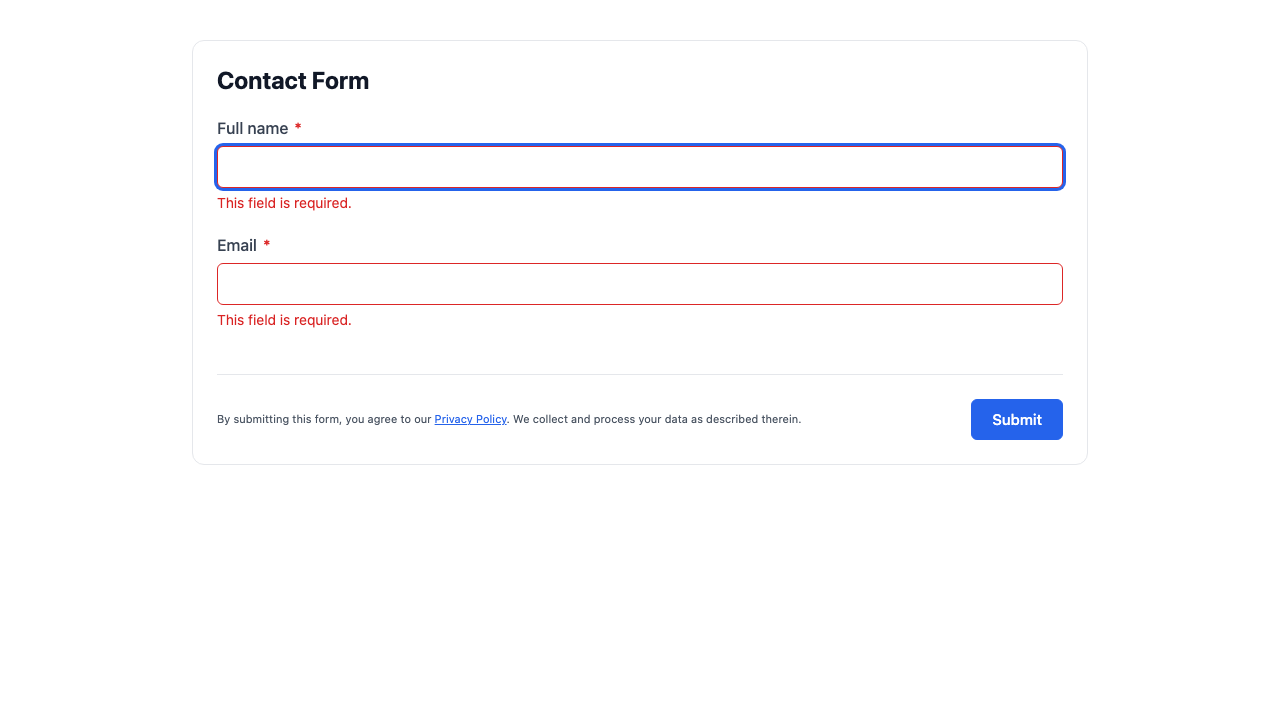
Error message sets one custom message for the field. That message replaces the default message for every validation rule on the field, so write it to cover all of them.
Which rules does each field type offer?
| Field type | Rows in the Validation group |
|---|---|
| Every field | Required |
| Every field except file, ranked choices, a date defaulting to today, and a calculated field | Read-only |
| Short text | Format, Pattern (with Custom pattern), Min length and Max length, counted in Characters or Words |
| Long text | Min length and Max length, counted in Characters or Words |
| Number | Min value and Max value |
| Multi-select, checkbox and ranked choices | Min selections and Max selections |
| File | Allowed types (Images, Documents, Archives, Audio), Other extensions (comma-separated) and Max size (MB) |
| Every field that takes rules | Error message |
Dropdown and radio fields take no rules beyond Required, Read-only and Error message, because a single-answer control can never select more than one option. Date, date and time, and time fields have no range row in the panel: ask Fai to set a date or time range, which can compare against a fixed date, today, a relative offset or another field.
Across the form, FormAssembly enforces required answers, email, phone, URL and ZIP code formats, a valid time, integers and decimals within a range, dates within a range, minimum and maximum length, minimum and maximum selections, a rating within its scale, file type and size, and a custom pattern on short text fields.
Max size (MB) must be above 0 and at most 50. No upload can exceed 50 MB whatever you set.
The panel checks what you type before it commits it. A pattern that does not compile, a minimum greater than its maximum, and an extension that is not letters and digits each show an inline error and are not saved.
Input formats on text fields
Format on a short text field offers None, Email, Phone, URL, SSN, ZIP code, Currency and Custom pattern. Picking Custom pattern reveals the Pattern row, and a custom pattern cannot be combined with a format: picking one clears the other.
Each format checks the answers it receives. SSN and ZIP code are also masked as the respondent types, and the ZIP code mask keeps a ZIP+4 extension. Phone, email, URL and currency are checked but not masked, because a fixed mask would corrupt valid international numbers.
How some answers are checked and stored
An email field takes exactly one address, and an answer with more than one shows "Enter one email address."
A URL field accepts a bare address such as example.com and stores it as https://example.com. An address that names a scheme must use http or https.
A ZIP code field takes 5 digits or ZIP+4, and FormAssembly stores ZIP+4 with the hyphen, as in 90210-1234.
When does FormAssembly check answers?
FormAssembly checks a field when the respondent leaves it. Radio buttons and checkboxes are checked when the respondent clicks Next or Submit, because there is no single moment when the respondent leaves the group.
Minimum length, and minimum and maximum selections on checkbox and multi-select fields, are checked only at final submit, not on Next.
In a repeatable section, FormAssembly checks each repeat entry on its own.
FormAssembly re-runs the validation rules on the server when the respondent submits the form, so nobody can bypass them in the browser. File type is checked again when the file is uploaded, and no upload can exceed 50 MB.
"Please enter a valid value." is the server's message for a number that is not written as a plain decimal, such as 1e3. In the browser, a number field shows "Please enter a whole number." or "Please enter a valid number.", or the field's Error message when one is set.
Hidden fields and validation
Fields set up as hidden inputs are still validated, including Required, and an error on one appears inline below that field. A hidden field is still checked because skipping the rules would make a hidden field the way to record an unchecked value.
FormAssembly does not validate fields that a condition hides, so a required field that a condition hides will not block form submission. That includes one inside a section that a condition hides: FormAssembly skips it when it checks the form, so it blocks nothing while it is hidden.
A field with Hidden from respondents turned on withholds its Validation group in the panel. The note described below appears under the Hidden from respondents switch instead. Turning the field back on restores the group with its rules intact.
Required fields a respondent cannot fill
A field that is required and Hidden from respondents, or required and Read-only, blocks every submission unless it is prefilled, has a default, or is hidden by a condition. Publishing does not stop this, because the combination is legitimate when a URL parameter or a connector supplies the value.
The field settings panel warns you when it detects the combination with no default of its own: "Also required, so submissions are blocked unless this field is prefilled."
To fix it, give the field a default value, prefill it from a URL parameter or an earlier step, or turn off Required.
Tips & Troubleshooting
- The condition panel says "Not saved until a condition is complete." One row is missing its field or its value. Finish the row, and the condition saves. If the field already had a condition, that older condition stays in effect in the meantime.
- Publishing is blocked with a message that a condition refers to a field that comes after it. A reorder moved the referenced field below the field, section or page that reads it. Move the referenced field above the carrier in Focus view, or point the condition at a different field.
- A required field is not stopping submission. A condition is hiding the field, and FormAssembly skips hidden fields when it checks the form. Check the field's own condition, its section's condition and its page's condition.
- The respondent sees your custom message on every error. A field holds one Error message, and it replaces the default message for all of that field's rules. Word it to cover every rule you set, or clear it to use FormAssembly's own messages.
- The Validation group is missing on a field. The field has Hidden from respondents turned on, and FormAssembly withholds the group while a field is hidden. Turn the switch off to see the rules again.
- A field offers no condition at all. Nothing comes before it (it is the form's first field, or a section at the top of the first page), or the field has Hidden from respondents turned on. Move it below the field you want to test, or move that field above it.
Was this article helpful?