Saving and Resuming Responses
How respondents save a form and finish later: turning it on, resume links, who can continue a saved response, and the publish checks.
Save and resume lets a respondent stop partway through a FormAssembly form, receive a link by email, and come back later to finish the same response. The answers they already entered are waiting for them, including any file they uploaded.
How do I turn on save and resume?
The author turns save and resume on with the Allow save & resume switch in the Collect step's Step settings, in the Submission group.
- Open the workflow in the builder and switch to Focus view.
- Select the Collect step you want respondents to be able to save.
- Click Step settings.
- Open the Submission group.
- Turn on Allow save & resume.
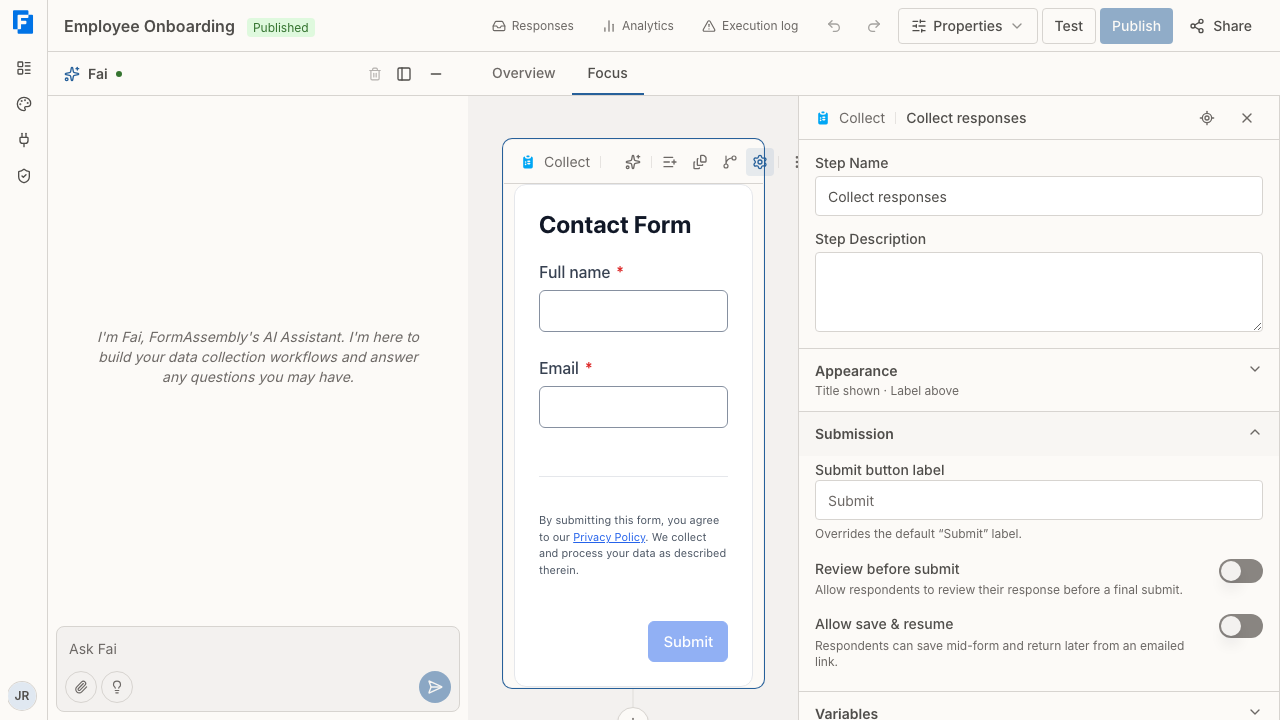
Turning the switch on also creates the first step of the save path: the route the workflow follows when a respondent saves. A save path can acknowledge the save, email the resume link, or send the partial response to another system. You can add steps to that path like any other part of the workflow, or ask Fai to build it for you by typing a request in the chat box ("Ask Fai") and clicking the send button.
The form shows a Save control when the Collect step has a save route with no condition on it. If every save route carries a condition, the form shows no Save control, because a save that matched none of the conditions would be discarded.
What does a respondent do to save?
The Save control appears in the form's action bar on every page of a multi-page form. When a respondent clicks it, FormAssembly opens a dialog that states a link will be emailed and shows the address it will go to. Confirming the dialog saves the response; cancelling returns the respondent to the form unchanged.
Saving does not require the form to be complete. Required fields and minimum lengths are not enforced on a save, but anything already entered must still be valid, such as a correctly formatted email address.
In the save dialog, pressing Escape cancels the dialog, and pressing Enter in the address field saves and never submits the form. The address is prefilled when FormAssembly already knows it, either because the workflow declares which field holds the respondent's email or because the response is already bound to an address. On return through a resume link, the address is shown read-only, so saving again reuses the same address without asking for it.
A form stays open for four hours after it loads, so tell respondents to save within that time. See also: What Respondents See, which covers the time limit and the rest of the respondent experience.
Saving does not run the form's submission check.
How do I send the resume link?
The resume link is sent only when an email step on the save path includes its own resume link in its subject or message. Write the link as the Field Reference {{ step_N._resumeUrl }}, using that email step's own step number. Confirming the save dialog does not send a link by itself.
The same email step addresses the respondent with {{ step_N._respondentEmail }} in its To field, using the same step number as the resume link. That Field Reference resolves to the address the response is bound to, which is either the address the workflow declares or the one the respondent typed into the save dialog.
To build the email step that sends the link, see What Happens After Submit.
How long does a resume link last?
A resume link stays valid for a year while the response is unfinished, and the respondent can use it more than once. Saving again with a new resume email replaces the earlier link, so the link in an older email stops working. A save that sends no resume email leaves the earlier link working.
If someone opens the link after the response has finished, FormAssembly shows the workflow's closing message. When the workflow has no closing message, or when the workflow requires sign-in through an identity provider, the page reads "This request is already resolved". After that first visit to a finished response, the link stops working an hour later, or sooner if its year runs out first.
Who can continue a saved response?
A resume link proves only that whoever opens it received the email at that address. It does not prove they are the person intended, because links get forwarded. Anyone who has the link can continue the saved response.
Once a link has been opened, the response can be continued only through a link sent to that address. If the workflow or an assignment requires sign-in through an identity provider, the link alone is not enough: whoever opens it must sign in first. See also: Single Sign-On for provider setup.
Send the resume email only to the respondent, and tell respondents in the email to keep the link to themselves.
How does a respondent correct a mistyped email address?
While neither address has been proven, a respondent who mistyped their address can correct it by entering the right address in the email field the workflow declares as the respondent's address and submitting again. The new address must not already belong to a respondent who has proven it. A workflow that declares no email field for the respondent cannot correct an address this way. The response then moves to the new address, and the old link stops working.
Once an address has been proven, for example by opening a resume link on a workflow without provider sign-in, a form field cannot move the response. At that point the respondent needs support to move the response.
What does FormAssembly check before I can publish?
FormAssembly refuses to publish a workflow whose save and resume setup is incomplete. These checks apply.
Every path after a save must lead back to a form in the same workflow. A save path that ends somewhere else, including a failure route from a connector step on that path, blocks publishing. A save inside a sub-workflow must return to a form in that same sub-workflow. A Collect step whose save routes all carry a condition is also refused.
The email step that sends the resume link must address the respondent. Its To field must contain either its own {{ step_N._respondentEmail }} (the same step number as its {{ step_N._resumeUrl }}) or the respondent email the workflow declares. Other recipients can sit beside it, and each of them gets a working link to the saved response, which is why the email should go only to the respondent.
Do saved responses change when I republish?
A saved response stays on the version of the workflow it started with, so republishing never changes a form under a respondent who is partway through. Respondents who start after you publish get the new version.
Tips & Troubleshooting
- The form shows no Save control. Check that Allow save & resume is on in the Collect step's Step settings, and that the save route has no condition on it. A step whose save routes all carry conditions shows no Save control.
- A respondent says their resume link does not work. They probably saved again with a new resume email, which replaces the earlier link, or corrected their address, or the response has finished and the link expired an hour after it was first opened after the response finished, or sooner if its year ran out. Ask them to open the most recent save email. For an unfinished response they can also ask for a new link from the page the old link opens; a finished response can't be reopened this way.
- Respondents save but never receive an email. The save path needs an email step whose subject or message contains its own
{{ step_N._resumeUrl }}. Without that reference, the email goes out with no resume link. - Publishing is refused because of the save path. Follow every route out of the save, including failure routes, and make sure each one ends at a form in the same workflow.
- Publishing is refused because of the resume email. Add
{{ step_N._respondentEmail }}to that email step's To field, using the same step number as the resume link.
Was this article helpful?