Testing & Publishing
How to test a draft workflow, review changes before publishing, publish, and what each workflow status means.
The builder header's Test and Publish buttons take a workflow from draft to live. FormAssembly keeps your edits in a draft until you publish, so you can run the workflow yourself first, check what has changed, and then make it reachable at its public URL.
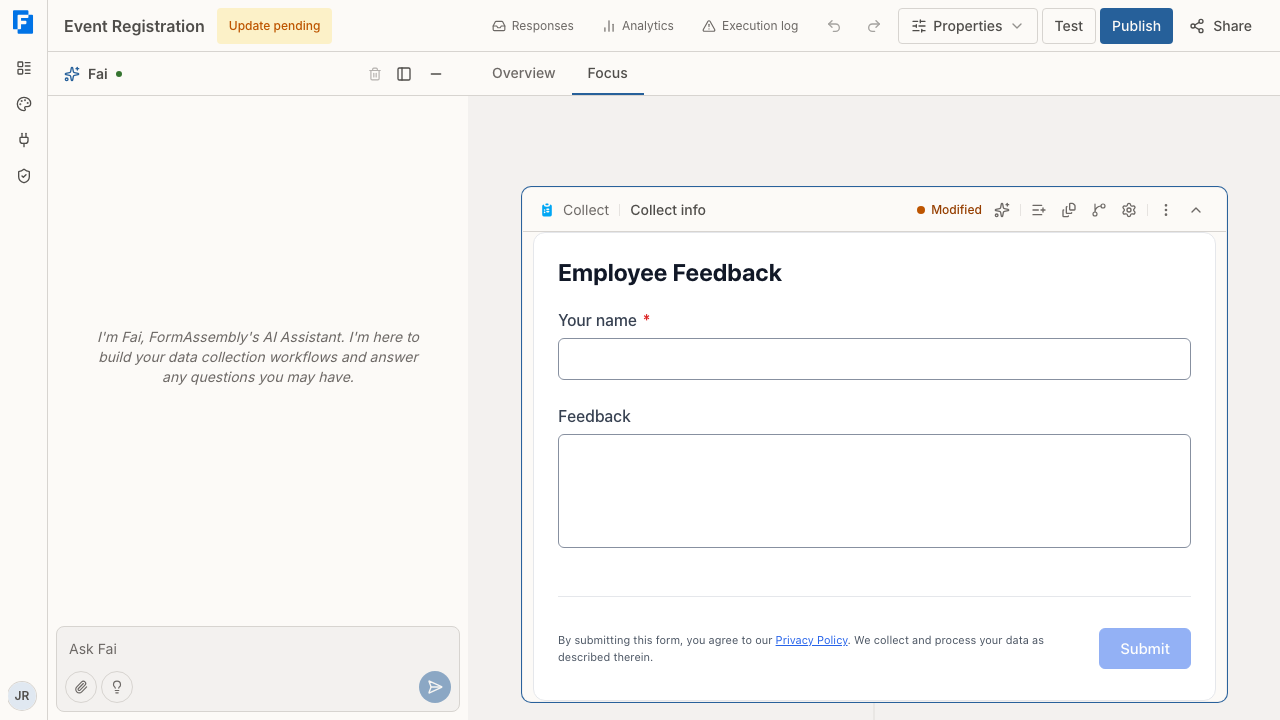
The builder header shows the workflow's status and saves your changes as you go; see Building Workflows.
Who can test a workflow?
Test mode is available to the workflow's owner and to admins of the account. A member who is neither cannot start a test run, and the test link cannot be shared: it is tied to the session of the person who started the test.
How do I run a test?
- Open the workflow in the builder.
- Click Test in the builder header.
- Wait while FormAssembly saves any pending changes and runs the readiness checks.
- Work through the workflow in the new browser tab that opens.
The test runs your draft when one exists, and the published version when the workflow has no draft.
Test saves your pending edits before it checks the draft. If that save fails, Test stops and the builder shows a message, so try again. Publish behaves the same way.
A test session lasts one hour. After that, reopening the test tab shows an error, and you start a new test from the builder.
You can start up to 40 test sessions per hour. An attempt blocked by the publish checks does not count.
What does a test run do?
A test run executes the workflow for real, so what you see is what a respondent will see.
A test run sends each email to the person running the test, with "[TEST] " before the subject, and sends no BCC copies. FormAssembly adds a note to the email body naming the address the message would reach in production. Assignment invitations and resume links in a test run also come to you.
Connector steps call the real external system. If a connector step has a test (sandbox) connection set, the call runs against that sandbox; otherwise it runs against the live connection and creates real records. One test run can mix sandbox-backed and live-backed steps.
A test run shows the consent banner when the forms the respondent can reach load content from other websites, but it writes no consent record.
FormAssembly records a test run like any other run, so documents are generated, signatures are captured and delivery is logged.
The test mode banner
Every screen of a test run carries a banner above the form, on the hosted page and in an embedded form. It reads:
Test mode — draft workflow preview
This is a preview of your draft workflow. It will not appear to real respondents.
Real records will be created in any connected systems (e.g. Salesforce, Google Sheets).
When the workflow has an availability window, a line naming it follows. The banner does not appear on steps that run on the server with no screen, such as email and connector steps.
Fill Test Data
Fill Test Data is a button in the test mode banner on the hosted page that fills the form on screen with valid sample data in one click, so you can reach the end of a workflow without typing every answer. It is not offered in an embedded form.
Fill Test Data answers one visible field at a time, in order, and uses the form's own Next control to move between pages. Conditions, calculations and dependent lists therefore behave exactly as they do for a respondent, and a field hidden by a condition is never filled. A repeatable section is repeated once, so the run exercises the repeat behaviour. A repeating section that already has more than one instance stays as it is.
Email fields receive your own address, free text fields receive lorem ipsum, and every other generated value satisfies the field's own validation rules. Generated web addresses use a reserved domain that cannot resolve, so a generated address never reaches a real host.
Fill Test Data answers dynamic lookup fields by choosing a real row from the connected dataset, exactly as a respondent would. The lookup itself populates any fields it fills in from that row, so Fill Test Data does not fill them separately. A lookup with no matching row leaves its field empty.
Fill Test Data leaves these fields empty, and normal validation prompts you if one is required:
- File upload fields, because a file can only reach a submission through the upload flow.
- Fields with a custom validation pattern, because an arbitrary pattern cannot be satisfied reliably.
- Read-only fields, including fields that carry a calculation formula.
- Fields that already have a value, such as a default value or a value prefilled from a launch parameter.
Fill Test Data produces no report of what it filled; the form's own validation shows anything left to answer.
Fill Test Data is not offered when the form itself is not visible, which is the case in a conversation-mode preview.
Where do test responses appear?
Test responses appear in the same Responses list, marked "Test response", and can be filtered by that column. Analytics leaves them out, so a test run never changes your completion or goal figures. See also: Managing Responses.
Why can't I test yet?
A draft that saves is not enough: your workflow must pass the publish checks before it can be tested, with three exceptions. FormAssembly saves a draft that is still incomplete, such as a connector step that is not set up yet; saving a draft does not run the publish checks.
Test runs the same readiness checks as Publish, except that Test checks only the sandbox connection of a connector step or lookup field that has one, accepts a picture choice option without a picture, and does not check the connected object's current fields: neither a mapped field the live org no longer declares, nor an unmapped field the object requires when a record is created. Anything else that blocks publishing also blocks a test, including:
- A step your plan does not include. See Documents, Signatures & Approvals for which steps need which plan.
- A connector step that is not fully set up.
- A document generation step with no template, or one that maps a tag the template no longer has.
- An email step with no recipient.
- A form step whose answer paths may not cover every submission, or a half-filled branch condition.
- A form step with no fields, so a workflow started from scratch can't be published until its form has a field.
- A step no path through the workflow reaches.
- A field reference, mapping row or return-data row naming a field or variable that no longer exists.
- Text in an email, a Respond or Redirect step, an approval or an assignment invitation, or a form's text block or default value, that uses an answer from a later step.
- A direct reference that crosses into or out of an assignment, or between assignments. Values cross only through the assignment's mappings.
- A calculation FormAssembly cannot evaluate.
- A lookup field using a connection that you can't use and that no current member of the workflow owns.
No step needs a failure route before you can publish or test.
The checks run in a fixed order and stop at the first kind of problem they find, so fixing those problems can reveal a problem of another kind on the next try. They cover the steps inside an assignment too. The same checks run when you publish, when you ask Fai to publish, when a reviewer approves a workflow under compliance review, and when a workflow is re-activated, except that only publishing checks the connected object's current fields: neither approval nor re-activation checks a mapped field the live org no longer declares, or an unmapped field the object requires when a record is created. Test has the exceptions listed above.
When a check fails, FormAssembly shows a banner below the header tabs, titled "Can't test yet" for most problems, with one line per problem naming the step. Click Ask Fai for help in the banner to open the Fai panel with those problems attached, so Fai can propose a fix. Fai is FormAssembly's AI assistant in the builder.
Test is also unavailable while a save is still in flight, and on a workflow you have not saved yet: in a guest session, clicking Test prompts you to sign up first.
How do I review changes before publishing?
When a published workflow has unpublished changes, FormAssembly shows you exactly what will go live.
A changed step carries a coloured dot on its card. In Focus view an expanded card also shows the label Added or Modified, and clicking the indicator opens that step's changes beside the card. A removed step is no longer on the canvas, so no card shows Removed.
Update pending in the builder header opens Pending changes, which lists steps under Added, Removed and Modified. Added and removed steps show their name and type. A modified step lists each changed setting with its before and after value. Long values such as an email body or a form definition are described in plain language rather than shown, for example Renamed "Phone" to "Mobile" or Added section "Payment", and a connector configuration change shows "Modified". At most two changes are spelled out, then "and N more changes". Reordering steps shows the step names before and after. Clearing a field and entering the same value again is not a change. Pending changes is informational: close it with Escape or a click outside, then publish when you are ready.
A workflow that has never been published has nothing to compare against, so neither the step indicators nor Update pending appear until the first publish and the first saved edit after it.
How do I publish a workflow?
- Open the workflow in the builder.
- Click Update pending to review what will go live, if the badge is shown.
- Click Publish in the builder header.
- Copy the live URL or the embed snippet from the panel that opens.
Publish saves any pending edits first, then checks the draft. On success, FormAssembly promotes the draft to the live version, sets the workflow to Active, and opens a panel with the workflow's live URL and its embed snippet, each with a copy button. After the first publish, click Share to open the same panel at any time without publishing again.
To share a published workflow, see Workflow Settings & Sharing.
The Publish button is disabled while the draft contains a step your plan does not include. Most other blocking problems appear in the "Can't publish yet" banner, in the same form as the test banner described above, with per-step lines and Ask Fai for help. A plan limit opens its own prompt, and a compliance block shows its own warning.
A workflow's public address is set when the workflow is created, generated from its name at that moment. Publishing and renaming never change it. To change the address, use the Access panel or ask Fai.
Publishing under compliance review
When your account requires compliance review and has at least one policy enabled, clicking Publish submits the workflow for review instead of publishing it: Publish is then disabled and the header shows Submitted for review until a reviewer decides. See Compliance & Policies.
Workflow statuses
- Draft: the workflow is not live; it has never been published, or it was unarchived to Draft.
- Active: published and reachable at its public URL.
- Archived: taken offline; its public URL no longer works, but it is not deleted.
Unarchiving can return a workflow to Draft even if it was published before, so check its status after unarchiving and publish it again to put it back online. Archiving a live workflow takes it offline, so it needs the same permission as publishing.
What happens to edits after publishing?
After publishing, edits are saved as a new draft, and the live workflow does not change until you publish again. Some changes take effect right away instead: renaming the workflow's internal name, changing its URL, and changing its collaborators or owner. The header shows Update pending while there are unpublished changes; clicking it opens the summary of changes. Respondents continue to see the published version in the meantime, and a run that is already under way finishes on the version it started with.
You can keep testing after publishing. Test always runs your draft when one exists, so you can check a change before it reaches respondents.
Tips & Troubleshooting
- "Can't test yet" or "Can't publish yet" banner naming steps. Fix each named step, or click Ask Fai for help to send the problems to Fai. The banner can be dismissed, but the checks still run on the next attempt.
- A new problem appears after you fixed the last one. The checks stop at the first kind of problem they find, so fix the named steps and click Test or Publish again.
- Publish is greyed out. There may be no draft changes to publish, or a step marked with a lock icon on the canvas needs a plan upgrade.
- Clicking Test opens an upgrade prompt. The draft contains a step your plan does not include. Upgrade the plan or remove the step, then test again. See Documents, Signatures & Approvals.
- The test tab shows a preview error. The test session has expired (sessions last one hour), or you opened a test link that belongs to another person or another workflow. Return to the builder and click Test again.
- The test page says to open the workflow in the builder and click Test again. The draft changed between starting the test and the page loading, and the new version did not pass the checks. Click Test in the builder, where FormAssembly names the problem.
- A test created a real record in Salesforce or Google Sheets. Connector steps run against the live connection unless the step has a test (sandbox) connection set. Set a sandbox connection on the step, or delete the record manually: FormAssembly does not roll back a test run.
- A test email never arrived. Test email goes to the signed-in tester, not to the configured recipients, so check your own inbox and spam folder for a subject starting with "[TEST] ".
- Changes are not visible to respondents. The edits are still a draft. Click Update pending to review them, then click Publish.
Was this article helpful?