What Respondents See
What respondents see and do on a published form: validation, the consent banner, spam protection, submitting, the signing page and assignment links.
What a respondent sees when they open a form
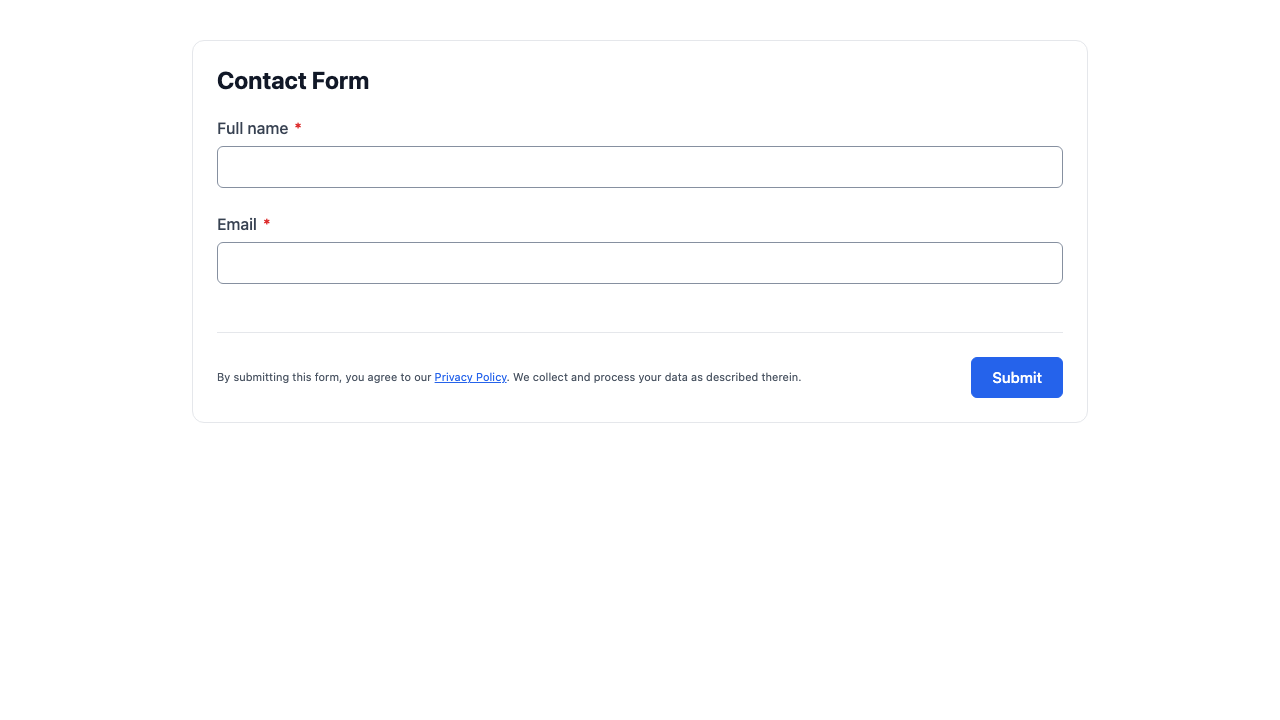
A respondent opens a published FormAssembly workflow from its link, and the form appears without the respondent needing a FormAssembly account. The page shows the form's title, its fields and its submit button, styled with the workflow's theme.
A workflow can require respondents to sign in through one of the account's identity providers. When the author turns that on, the respondent signs in before the first form appears.
To embed a form on your website, see Collecting Responses.
Filling in the form
Respondents type their answers and move through the form with the keyboard or the mouse. Fields that depend on an earlier answer appear and disappear as the respondent types, so a respondent sees only the questions that apply to them.
Repeatable sections show controls to add and remove entries, up to any limit the author set. The first entry cannot be removed.
File fields accept up to 50 MiB per file, or less when the author set a lower limit on the field. When a respondent uploads a file and the form comes back with an error, the file they already uploaded stays attached.
Read-only and calculated fields show their value and cannot be edited. Hidden fields never appear on screen.
To arrange pages, add a progress bar or turn on review before submit, see Layout, Pages & Media.
Which button submits the form
The submit button reads Submit unless the author relabelled it, and Review when review before submit is turned on. On a multi-page form, earlier pages show Next instead.
When errors appear
FormAssembly checks each field except radio buttons and checkboxes when the respondent leaves it, and checks every field on the page when the respondent clicks Next or Submit. Error messages appear below the field they belong to.
FormAssembly checks every answer again on the server when the respondent submits, so editing the page cannot get past a required field or a format rule.
The two error cases behave differently. When Next or Submit finds an error, focus moves to the first field with an error on that page. When the server finds an error in a submitted form, the form reopens on the first page that carries an error, with every answer kept.
Choosing a language
When a workflow offers more than one language, the form shows a language switcher. The run starts in the language that best matches the respondent's browser, and the respondent can switch at any time. Switching keeps the answers already entered. To translate a form, see Form Language.
The consent banner
The consent banner asks the respondent whether the form may load images, video and audio from other websites. FormAssembly writes the banner text, and the form owner cannot edit it or turn the banner off. The banner covers content from other websites only; the account's legal text and privacy declarations cover the data respondents submit. Images and video FormAssembly hosts are not a consent item, and neither are icons or uploaded pictures.
The banner shows when at least one form the respondent can reach uses an image, video or audio from another website, including one loaded by an HTML block or by the workflow's theme. When no form they can reach uses one, the respondent sees no banner and no Content settings link. The banner never opens on a signing or approval page.
On the hosted page the banner sits at the bottom of the window; on an embedded form it sits at the bottom of the embedded form. It never hides the field that has keyboard focus, and the respondent can always scroll to the content behind it. The consent banner takes its styling from the workflow's theme and follows the run's language.
What the respondent can choose
Every item is off until the respondent accepts it, and nothing loads for an item before then. The respondent can accept every item, reject every item, or choose item by item. Rejecting is as visible and as easy to reach as accepting, and nothing is pre-selected. Not choosing counts as rejecting everything. A respondent who rejects an item, or ignores the banner, can still fill in and submit the form.
How long a choice lasts
A choice lasts for the visit, which is one browser tab session on that workflow. Reloading the page, duplicating the tab, and moving back and forward in the tab all keep the choice. Closing the tab ends the visit, and a new visit asks again. Resuming a saved form later or opening an assignment link starts a new visit, and opening a different workflow in the same tab asks again. An embedded form asks again after a reload.
The Content settings link
Content settings is a link on the last line inside the form card, on form steps only, and it appears whenever the banner applies. Clicking it lets the respondent review and change their choices, starting from the choices in effect. A change applies at once: turning an item on loads its content, and turning it off removes that content from the page and stops further loading. FormAssembly tells the respondent that withdrawing consent stops future loading but cannot recall what another website already received. The confirmation page shows no Content settings link.
Spam protection
When spam protection is on, FormAssembly runs an automatic spam check when the respondent submits. There is no puzzle and nothing for the respondent to click, but the check runs in the browser, so respondents need JavaScript turned on. When spam protection applies, FormAssembly accepts nothing until the check passes.
The author controls the check under Properties → Access → Spam Protection, and it is on by default for new workflows. A workflow created before FormAssembly added spam protection to form submissions shows the switch off unless someone turned it on or the workflow locks it on. The switch is locked on when an email step reached on submission, or an assignment invitation, can send to an address the owner did not fix, such as one taken from the respondent's answers. A step reached only by saving does not lock it. Turning the switch off shows a warning, and FormAssembly still limits repeated submissions from the same internet address.
Test runs, assignees and respondents who signed in through the workflow's authentication skip the check. Saving a form to finish later does not run this check.
Submitting the form
When the respondent clicks Submit, the button is disabled and its label changes to "Please wait..." in the respondent's language while the submission sends. On success the next step replaces the form.
When spam protection or the submission limit refuses the submission, or the connection fails, the form stays on the page with every typed answer kept, a message explains why, and Submit works again. FormAssembly never resubmits on its own: the respondent decides whether to try again.
One internet address can submit a workflow 500 times in 10 minutes. Past that, the respondent sees a message asking them to try again later, and their answers stay on the page.
A form stays open for four hours after it loads, and a submission from that page after that is refused. For long forms, let respondents save and finish later: see Saving and Resuming Responses.
Completing the workflow
After the last form, FormAssembly runs the email and connector steps that follow it. The respondent may briefly see "Your submission is being processed. This page will refresh automatically." before the confirmation message or the redirect appears.
Steps that need someone else, such as an approval or a signature assigned to another person, wait for that person. The respondent sees a confirmation only when the workflow shows one before that step. To build the steps that come after a form, see What Happens After Submit.
What a signer sees
A signer reaches the signing page straight after their own form, or from the invitation link FormAssembly emails them. The document opens in a viewer on FormAssembly's hosted page, with only this signer's fields active. Signatures other signers already made are flattened into the document and cannot be changed.
A bar at the bottom steps through the signer's fields in a set order, highlighting the current one, with controls to move to the previous and next field. A signature can be drawn, typed or uploaded in the viewer's own dialog. A date field fills in with today's date in the run's time zone and language.
A top bar shows progress and offers the download and the decline control. On a narrow screen both move into an options menu. The consent checkbox and Sign appear once every field is done, so signing always happens in one place. A terminal sign step ends on a page confirming that the signature or the decline was recorded.
Declining asks the signer to confirm and takes an optional reason of up to 500 characters. Signing works only on FormAssembly's hosted page: an embedded form shows the step and can decline, but cannot load the viewer.
Reassigning from the signing page
Unless the assignment turns reassignment off, a Reassign button beside the decline control lets the signer send the request to someone else, with a reason. Their own link then stops working.
What an assignee sees
An assignee opens the invitation link and lands on the steps assigned to them, with the data the assignment passes in. They never need a FormAssembly account, though the assignment can require them to confirm their identity or sign in through an identity provider.
When the assignment is set so the first person to open it takes it, the other invitees' links show that someone else picked it up as soon as one invitee opens theirs. After the assignment is finished, a link shows "This assignment is already resolved". If the assignment was cancelled, the link shows the cancellation message set on the assignment step, or a standard message when none is set.
Accessibility
FormAssembly's respondent pages target WCAG AA. Every field has a label, error messages are linked to the field they describe, and all fields and controls are reachable by keyboard. Moving between pages moves focus to the start of the new page, and a multi-page form can show a progress indicator when the author turns one on. Read FormAssembly's accessibility report at /legal/accessibility.
The "Powered by FormAssembly" badge
Forms on the Collect plan show a "Powered by FormAssembly" badge below the form. The Automate plan and the Enterprise plan remove it. No theme or setting hides the badge on the Collect plan.
Tips & Troubleshooting
- The respondent sees no images or video from other websites on the form. They rejected the consent banner or ignored it, which counts as rejecting. Ask them to click Content settings at the bottom of the form card and turn on images and video.
- The respondent clicks Submit and nothing is accepted. Spam protection needs JavaScript in the browser, and an embedded form needs a secure (https) page to run the check. Check both, then submit again.
- The respondent sees a message asking them to try again later. The workflow reached 500 submissions from that internet address in 10 minutes. Their answers stay on the page, so they can wait and click Submit again.
- A submission is refused after the form sat open for a long time. After four hours the page no longer belongs to a response. Open the form's link again to start a new response; answers typed before are not kept. For long forms, turn on save and resume.
- The form reopens on an earlier page after submitting. The server found a validation error, and FormAssembly reopens the form on the first page that carries one, with every answer kept. Fix the field with the error message and submit again.
- A signer cannot sign inside an embedded form. Signing works only on FormAssembly's hosted page. Send the signer the invitation link, which opens the hosted signing page.
Was this article helpful?