Managing Responses
How to replay, reassign, export and delete responses, one at a time or in a batch, and who can do each.
Managing responses means working with responses that already exist: replaying one that went wrong, reassigning an outstanding assignee, exporting a workflow's history, and deleting a response. FormAssembly keeps each of these actions on the workflow's Responses page or on an individual response page.
To find a response in a workflow's list, see Viewing Responses. To see what the response page shows, see Reading a Response. Sharing a workflow's link belongs to Collecting Responses; getting it live and test-running it belong to Testing & Publishing.
Who can replay, delete and export responses
Replaying a response needs edit access to the workflow. A user who can only view responses does not see the replay control, and Fai, FormAssembly's AI assistant, checks the same access before it replays anything.
Deleting a response needs the Delete individual submissions permission, and it also needs the workflow's owner or an account admin. The Viewer role, unless an admin has edited it, can view and export but not delete, even on a workflow the Viewer owns. A Builder can delete only on workflows the Builder owns. Users who cannot delete a workflow's responses do not see Delete at all.
Exporting needs both View submitted responses and Export submission data, the names the role editor shows. This matters only for a custom role or an edited preset role, because all three preset roles hold both by default. Exporting is not limited to owners.
FormAssembly records each time someone opens or deletes a response, and each export of a workflow's responses, in the Audit log (Account → Audit log), which account admins on the Enterprise plan can review.
How do I replay a response?
A replay re-runs a response from a step you choose, so a step that failed or did not do what you needed runs again.
- Open the response from the workflow's Responses page.
- Find the step you want to re-run in the run timeline.
- Click Replay from this step.
- Read the confirmation, which states what the replay will do.
- Confirm the replay.
The row's Response actions menu on the Responses page also offers a replay for that one response. Fai can replay any response you can replay, not only an aged-out one, and asks you to confirm first.
What a replay runs again
The confirmation says which of the two things will happen. For an email, document, connector, Respond, Redirect or assignment step, that step and the steps after it run again, so an email re-sends and a connector re-runs. For a form, approval or signing step, or a connector step that prefills or redirects, the response moves back to that step and waits for the respondent.
FormAssembly refuses a replay while the response is being processed. Try again shortly.
To retry a delivery that failed, replay the response from the step whose delivery failed.
Emailing the respondent a link to continue
When you replay from a step that waits for the respondent, you can email them a link to continue. When nobody has yet proven the response's email address, you can send that link to a corrected address instead, so a typo in an address does not strand the response.
Replaying onto a corrected version
If you fixed the problem by editing and publishing the workflow, re-run the response onto the corrected version. In the replay dialog, Workflow version lists the response's own version and up to 20 other versions, newest first. A live response is offered published versions; a test response is also offered Current draft. The newest published version is marked "(live)". The picker appears only when another version exists.
A version marked "not compatible" cannot be chosen, and the dialog lists the reasons. Two common reasons are that a step the response passed before the replay point has changed, or that a form step the response reached has changed.
Re-running a response onto another version replaces it, and the replacement continues the same response. The replacement keeps the original's Started time and the original's test or live status, and it is not counted again toward your plan's response usage. FormAssembly marks the original Replaced: the original's page says "This response was replaced" and offers Open the replacement, and the replacement's page says "This response replaces an earlier one". The Analytics figures do not drop when a response is replaced.
Replaying an aged-out response
The Replay from this step control is on the response page, and an aged-out response's page shows only the out-of-window notice, so the control is not there. The 90-day window does not limit replay itself. To replay an aged-out response, ask Fai, giving it the response's link and the step to replay from.
How do I reassign an outstanding assignee?
On the response page, each handed-off run that is still in progress has a Reassign button, in the list of handed-off runs and in a Signers table. Only people who can replay the response see it, which needs edit access to the workflow. Fai can also reassign an assignee.
- Open the response and find the handed-off run that is still in progress.
- Click Reassign.
- Enter New assignee's email.
- Enter a Reason.
- Confirm the reassignment.
The Reassign to someone else? dialog warns that the current assignee's link stops working and that the new assignee gets the same request and an email invitation. The new assignee starts the request from the beginning; nothing the first assignee entered is carried over. A signer keeps the same signing role.
If the invitation email could not be sent, a warning says so. Reassign to the same person again to retry. FormAssembly refuses the reassignment when the request is being processed, has been answered, or uses an identity provider sign-in. The reassignment appears in the account's Audit log on the Enterprise plan.
Reassignment limits
The Reason is at most 500 characters, and New assignee's email takes one address. Reassign stays disabled until both are filled in correctly. Anyone who can reassign from the response page, which means anyone with edit access to the workflow, may give any address.
Assignees can hand on their own request
The hosted signing and approval pages show a Reassign button, unless the assignment step turns that off. The assignee gives an email address other than their own and a reason. Only an assignee handing on their own request is refused for giving their own address. A form embedded in another site does not offer it.
How do I export responses?
- Open the workflow's Responses page.
- Click Export.
- Set the Started between range if you want one, using From and To.
- Tick Include test responses or Include files if you need them.
- Click Start export.
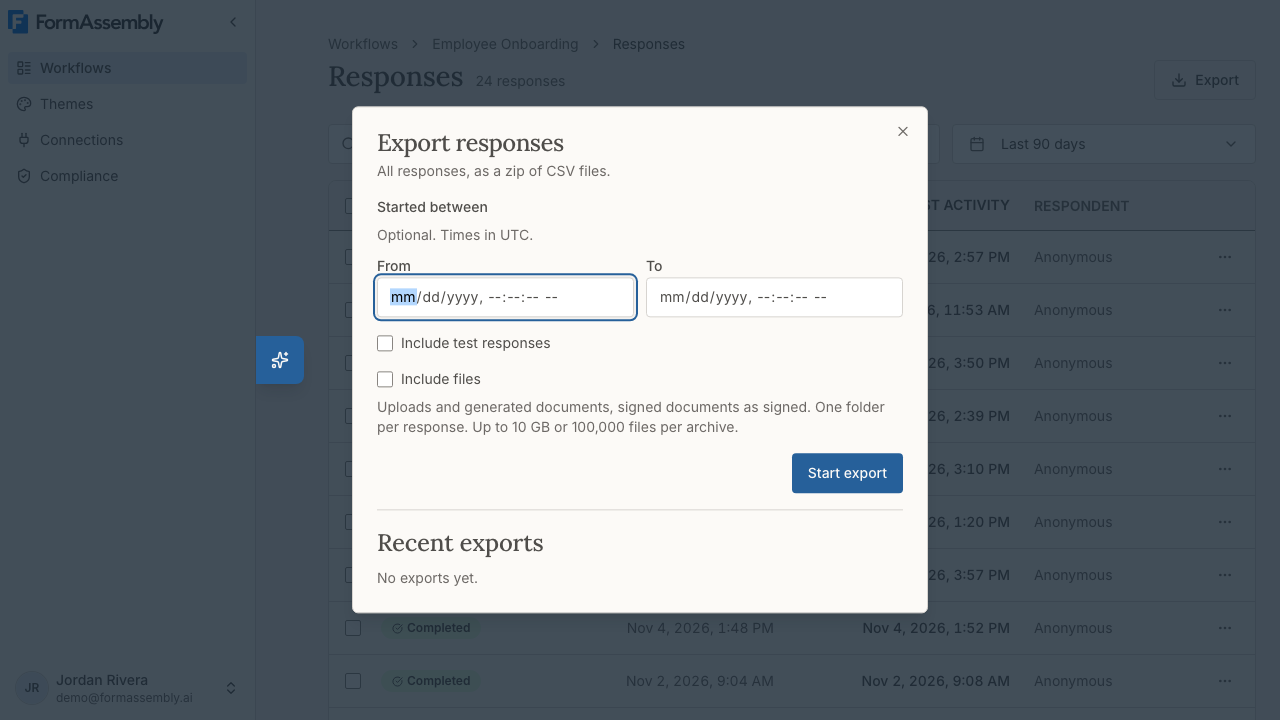
FormAssembly builds the export in the background and emails you when it is ready. The Started between range exports only the responses that started inside it.
The list's search, filters, timeframe and selected rows do not narrow an export. Only its own Started between range and Include test responses do. An export is not bounded by the 90-day window, so it reaches responses older than the list shows.
FormAssembly checks your access again when it builds the export. If you lost access in the meantime, the export fails and you get the failure email.
Export statuses
Recent exports in the Export responses dialog shows Queued, In progress, Ready, Failed or Expired, with a download link while an export is Ready. Fai can start an export and report on it.
Large exports
Only an export with Include files splits, and only above 10 GiB or 100,000 files. It then arrives as several archives, and FormAssembly emails each one when it is ready.
What the export archive contains
The archive holds linked CSV files:
- responses.csv has one row per response. It starts with Response ID, Version, Status, Outcome, Started, Last activity, Respondent and Language. A Test response column (Yes/No) appears only when test responses are included. The rest of its columns are the response's answers and other values.
- The Language column is in the responses file and in each assignment file. It is empty only for a response from before FormAssembly recorded languages, and for a handed-off run whose assignee has not opened it yet.
- Each assignment step and each repeated section that has rows gets its own CSV, linked to its response by Response ID.
- When the workflow changed between versions in a way one table cannot hold, that table is split into several files with the versions in the file name, such as "(v1–v4)".
- columns.csv lists every column of every file with its field reference, label and the versions it applies to.
A field removed from the workflow keeps its column, marked "(removed)". Each file upload field and document step has a file name column and a "(link)" column. With Include files, it also has a "(file)" column giving the file's path in the archive, and the files sit in a files folder with one folder per response.
A "(link)" column downloads the file through FormAssembly for a signed-in user who still has access to the workflow's responses, whatever the response's age. It stops working once the response is deleted.
The Started and Last activity times are in UTC, written like 2026-10-27T14:03:00Z. A value that starts with =, +, - or @ is written with a leading ' so a spreadsheet does not run it as a formula; answers to number fields are left as they are.
A signed document goes into the archive as its signed version. Each document generation step has its own CSV column, with or without Include files.
How do I delete a response?
Delete is in the row's Response actions menu on the Responses page and on the response page itself. FormAssembly asks for confirmation first, in a dialog titled "Delete response?".
A delete removes every handed-off run under the response. For a replaced response, or one that replaced another, it also removes the whole replacement chain. You cannot delete a handed-off run on its own.
Afterwards the response leaves the list, the response page, later exports and the Execution log, and a direct link shows a "not found" page. An export made before the delete still contains it. FormAssembly keeps the deleted data, and nobody can restore it from the product.
Deleting a response lowers the Responses page count and the Responses column on the Workflows page. Deleting a live response, not a test one, also lowers the Submissions card there, which counts live runs only. The per-workflow Analytics page keeps its figures after a delete.
Bulk delete and batch replay
Select responses on the Responses page to act on several at once. The selection bar offers bulk delete and batch replay to a viewer allowed to do either, and never offers export.
A selection holds responses only, never a handed-off run, and at most 100 responses. FormAssembly checks each response on its own, and a refusal never stops the rest. The result says which responses failed and why. Selecting every matching response is offered only when the exact count is known and is 100 or fewer.
A batch replay shows a preview first: how many responses will replay and why each other one will not. It replays every response from one of its own steps, onto each response's own version or one published version for all, never the draft. It skips a response with no address when the step waits for its respondent.
What you cannot do yet
- You cannot edit response field values. Collected data is read-only.
- You cannot choose which columns or rows to export. An export always takes every field, and the list's search, filters and selected rows do not narrow it. The only narrowing an export offers is its own date range and the test-response option.
- You cannot restore a deleted response.
Tips & Troubleshooting
- A delivery failed and you want to send it again. Use Replay from this step on the response page, choosing the step whose delivery failed.
- Your export has not arrived. FormAssembly builds exports in the background and emails them when ready. Check Recent exports in the Export responses dialog for the export's status.
- You expected one export file and received several. Only an export with Include files splits, above 10 GiB or 100,000 files. Download each archive as FormAssembly emails it.
- A test response is missing from your export. FormAssembly excludes test responses unless you tick Include test responses before starting the export.
- A version you want to replay onto cannot be chosen. A version marked "not compatible" lists its reasons in the dialog, commonly a changed step the response passed or a changed form step it reached. Choose another version, or replay on the response's own version.
- You do not see a Delete option. Deleting needs the Delete individual submissions permission and the workflow's owner or an account admin. Ask an account admin.
Was this article helpful?