Reading a Response
How to read a single response: its answers, generated and signed documents, signers, approval history, delivery results and run timeline.
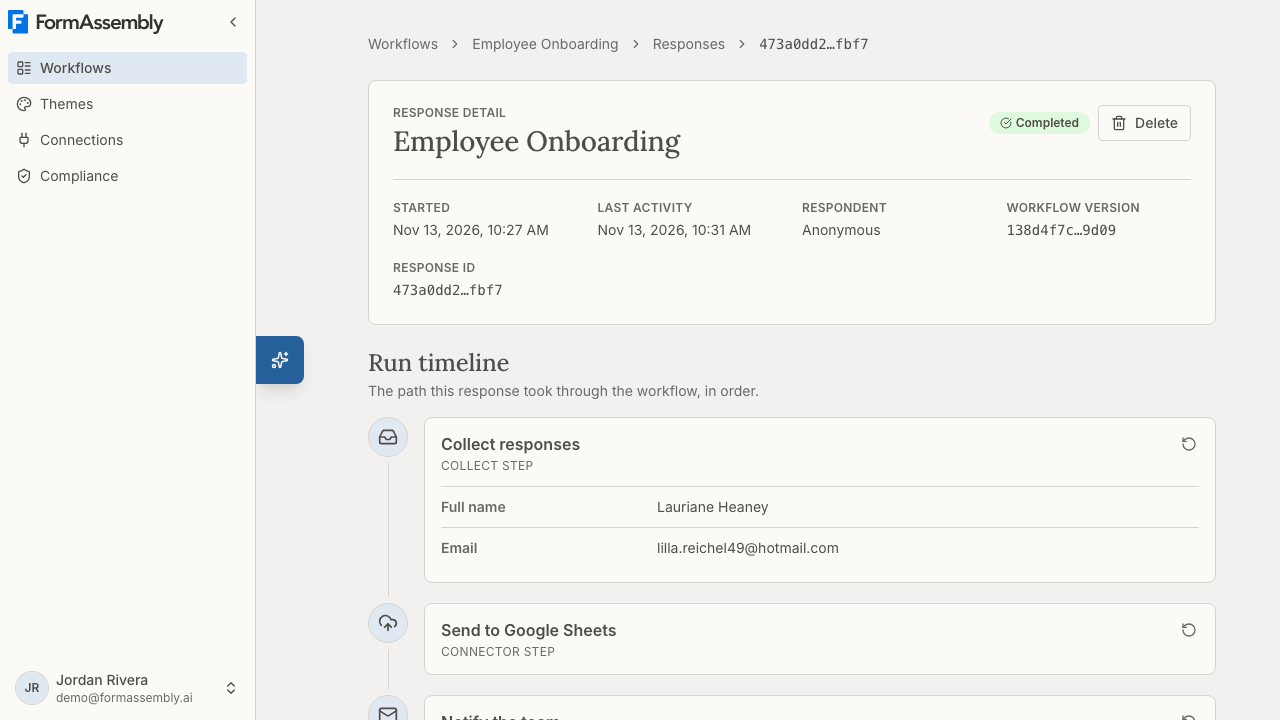
Each response in FormAssembly has its own page, built as a run timeline: the status and identifiers at the top, then every step the response actually entered, in the order it entered them, with the data, documents and results that belong to each step hanging off it.
How do I open a response?
To find a response in a workflow's list, see Viewing Responses. Click a response's row to open its page.
What the summary tells you
The summary at the top of the page carries the response's status, the time it started, its last activity, the respondent, the workflow version the response ran on, and the Response ID. Quote the Response ID when you contact support about a response. The run and version identifiers are long, so the page shortens them and shows the full value on hover.
A response collected in test mode carries a Test run pill in the summary.
Every new response records the language it ran in, including the default language, and the summary shows it in a Language field. Two kinds of response have no language and show no Language field: responses from before FormAssembly recorded languages, and a handed-off run whose assignee has not opened it yet.
When a delivery for the response failed, a warning sits directly under the status row and links down to Delivery results. The status badge itself stays as it is: a response can read Completed and still have a delivery that failed.
If the response was replaced on a corrected version, or is itself a replacement, each page names the other near its status, because the two are one response.
Collected data
The answers a respondent gave appear inside the timeline entry for the step that collected them, as question and answer. FormAssembly shows each question as it reads in the workflow version the response ran on, in the form's default language, so a respondent who filled in a translated form saw other wording.
A choice answer shows the label of the option the respondent picked, and a ranked-choice answer shows its options in the order the respondent ranked them.
A repeatable section renders as a group per instance, named with the section's own label and a number: "Dependents 1", "Dependents 2". The number stays even when there is a single instance, so you can tell a repeating section from a plain field. A section nested inside another repeat also says which parent instance it belongs to, such as "within Dependents 2".
A file-upload answer is a link to the stored file. A file that FormAssembly is still processing reads "Not ready", and a file that the malware scan flagged reads "Blocked". Neither offers a download.
Generated and signed documents
A document generation step's entry on the timeline lists the PDF it generated as a download, under Generated document. A document that is not ready yet shows its state instead of a download link.
When the step runs again within the same response, such as a retry or a replay of that response on its own version, the new PDF replaces the earlier one. A replay onto another version leaves the original's PDF on the original response.
Once a document has been signed, its entry reads Signed document rather than Generated document, and downloads the current signed PDF. A ⋯ menu beside it holds Download original (unsigned). When the document has had more than one signer, the menu also holds Download version N for each earlier version, labelled with that version's signers in parentheses. A signed document is never replaced. The signed PDF ends with a certificate of completion page.
Who signed, and what they decided
Signers are listed on the assignment step that sent the document out, not on the document generation step. That entry shows a Signers table with the columns Role, Signer, Status and When, one row per assignee.
Each signer's address links to their own run. A signer who has not decided yet shows their run's status, such as In progress. A signer who declined shows Declined, with the reason they gave on its own row.
An assignment whose assignee only reviews the document, such as an approver, keeps the plain list of assignees instead of a Signers table.
Signing also adds a delivery entry labelled E-signature on the run that signed. For a signer on a handed-off run, that entry is in the handed-off run's own Delivery results, not the parent's. Signers' IP addresses appear only in the certificate of completion page of the signed PDF, never on the response page.
Delivery results
Delivery results lists one entry for everything the response sent out: the target, its status, the destination's record id, and a short reason when something failed. The statuses are Pending, Success and Failed. A delivery entry can be an email, a connector, a document generation, an e-signature or an export. A document generation entry is labelled Document generation, and its record id is the same file the step's timeline entry offers.
Where the destination created a record with a URL, the record id is itself the link to that record. Most connectors record a plain identifier instead.
A Success outcome is not proof of delivery. Only a connect step can record a partial delivery: the record was created, but a later operation failed, and the entry reads "Partial delivery". An email step never records a partial delivery. An email step can still show Success when no recipient received the email, because every To address was on a blocked domain, so check Delivery results rather than the response status when you are confirming that something arrived.
An email sent before the respondent's first submit or save records no delivery entry at all.
When a response has no delivery entries, the section says why: an in-progress response has had none yet, a workflow with no delivery steps has nothing to deliver, and a failed response stopped before any were recorded.
Who an email was sent to
An email entry can list the addresses the email was sent to after "Sent to:", any copied addresses after "Cc:", and any blind-copied addresses after "Bcc:". Each line appears only when it has addresses.
When every To address is on a domain FormAssembly does not send to, FormAssembly sends the email to nobody, not even to a Cc or Bcc address on another domain, and the entry reads "No recipient received this email." When at least one To address is on an allowed domain, FormAssembly leaves an address on a blocked domain off the "Sent to:", "Cc:" and "Bcc:" lines and sends the email to the remaining addresses.
Some entries show no recipients lines: a failed delivery, a connector, a document generation, an e-signature, an export, and an email delivered before FormAssembly began recording recipients. For the email delivered before recording began, the absence is normal rather than a fault.
On a test response, the address shown is that of the person who ran the test, because a test send always goes to them.
On a live response only, FormAssembly sends the email to the workflow owner when the email step's To field as a whole resolves to no address, for example when the only recipient came from a field the respondent left blank. An email step that carries the respondent's resume link is the exception: it fails instead of falling back to the owner.
The page shows each address as it was stored and replaces a listed set of characters with a visible code, such as \u{200B}. That set is format and default-ignorable characters, line and paragraph separators, spaces other than the ordinary space, the Braille blank, the two characters that stand in for @ (U+FE6B and U+FF20), and any @ that appears before the address's real @. Each of those characters can reorder, hide or disguise part of an address. Letters from another script that resemble Latin letters are shown as written, with no code, so the codes are not a complete reading of an address.
Approval history
Approval history lists the decisions recorded against this response, oldest first, and appears only when there is at least one. A top-level response shows every decision including those made inside its assignments; an assignment's own page shows only its own decisions. Each entry carries the decision, any comment the approver left, and the time it was made.
Run timeline
Run timeline shows the steps the response actually entered, in the order it entered them. A step the response never reached is absent: the timeline reports the path travelled, not the whole workflow. A step entered more than once appears once per visit, labelled with its visit number.
No step on the timeline carries a time, because FormAssembly records the order of steps rather than a time for each. Times do appear elsewhere on the page: in the summary's start and last-activity fields, on replays, on approval decisions, in the signers' When column, and in the execution log.
A step with a built-in outcome, such as Success or Failure, Approved or Denied, Signed or Declined, reports it as an "Outcome:" line on the step's own card. A branch the author wrote gets its own card immediately after the step that forked. That card is titled with the author's branch name, or else a summary of its condition. The branch taken with no condition after a submit fork reads "Default"; on other forks it reads "Otherwise". A response from before FormAssembly recorded its path shows no branch lines and no outcome lines.
If someone replayed the response from a step, the replay appears on the timeline where it happened, naming who replayed it and when.
Saves fold into the form's row on the timeline. A summary row after the form counts the saves and expands to show each save's steps. Three cases stay expanded instead: a genuine loop, a save path that ends at another form, and a run parked partway along its save path.
To replay, reassign, export or delete a response, see Managing Responses.
Related and handed-off runs
When a response hands work to someone else, the handoff reads as an event on the timeline rather than as metadata at the top.
On a parent response, the assignment step's entry lists the runs it handed off to, each naming the assignee and carrying that run's own status. It lists direct handoffs only: a handed-off run that handed off again lists its own on its page.
On a handed-off run, the assignment step that started it leads the timeline, ahead of the run's own first step, so you can get back to where the run came from.
A file uploaded in the parent workflow can be passed into a handed-off run, and a file uploaded in a handed-off run can be passed back to the parent response.
Execution log
The Execution log section lists the step failures and notices recorded while this response ran, most recent first, with the full error text. Delivery results says that a delivery failed; the execution log says why. Click View the full log for this workflow to see the same entries alongside every other run of the workflow.
Execution log entries expire after 90 days. While the full error is still in the log, See error details appears beside the short reason in Delivery results and takes you to the entry. After 90 days only the short reason stays.
What you cannot do yet
- You cannot view device, IP address or location information. FormAssembly does not capture this on a response, except that an e-signature records each signer's IP address and browser details as signing evidence; only the IP address is shown, on the certificate of completion page of the signed PDF.
Tips & Troubleshooting
- A connected system has no record for a response that shows Completed. Completed describes the respondent's journey, not delivery. Check Delivery results on the response page. A red warning triangle on the response's row in the list can also mean a handed-off run's delivery failed; that failure is in the handed-off run's own Delivery results, not the parent's.
- A delivery still shows pending. The delivery had not finished when the page loaded. Reload the response page.
- A delivery failed and you need the full error text. Click See error details beside the entry, or read the Execution log section. Both are available only for 90 days after the failure.
- A delivery entry reads "No recipient received this email." Every To address was on a domain FormAssembly does not send to, so FormAssembly sent the email to nobody. If the email step itself names the blocked address, correct the step and replay the response onto the corrected version, chosen under Workflow version in the replay dialog, starting from the email step or an earlier step. For a live response the corrected step must be published first; a test response can also be replayed onto the current draft. If the address came from a respondent's answer, correcting the step does not change it, because a replay keeps the response's answers.
- An email delivery lists the workflow owner's address. On a live response this means one of two things. Either the email step's To field names that address, directly or through an answer or reference that resolves to it, or the To field as a whole resolved to no address and FormAssembly sent the email to the owner. Open the email step and check its To field to see which case applies. On a test response the address is that of the person who ran the test.
- A signed document is not the version you expected. The Signed document entry downloads the current signed version. Use the ⋯ menu for the original or an earlier version, and read the Signers table to see who has decided.
- A field you added recently is missing from an older response. FormAssembly renders collected data against the workflow version the response ran on. Responses collected before you published the new field do not contain it.
- You need help interpreting a response. Open Fai, the FormAssembly AI assistant, and ask about the response in front of you.
Was this article helpful?